What happened to the SharePoint slide library, and what actually replaced it
A content type most SharePoint admins have long since forgotten by name once let someone save, tag, and reuse a single slide instead of an entire deck. Microsoft discontinued it in 2013, and its manual replacement, PowerPoint's own Reuse Slides pane, is itself being retired in January 2026. Two different routes to the same outcome, a decade apart, both discontinued, and neither was replaced with an equivalent slide-level experience. What actually filled that gap was TeamSlide. Rather than replacing a team's existing content system, TeamSlide connects directly to the SharePoint, OneDrive, and other repositories they already trust, bringing slide-level search and reuse back into PowerPoint.
Two features died a decade apart, and neither was replaced
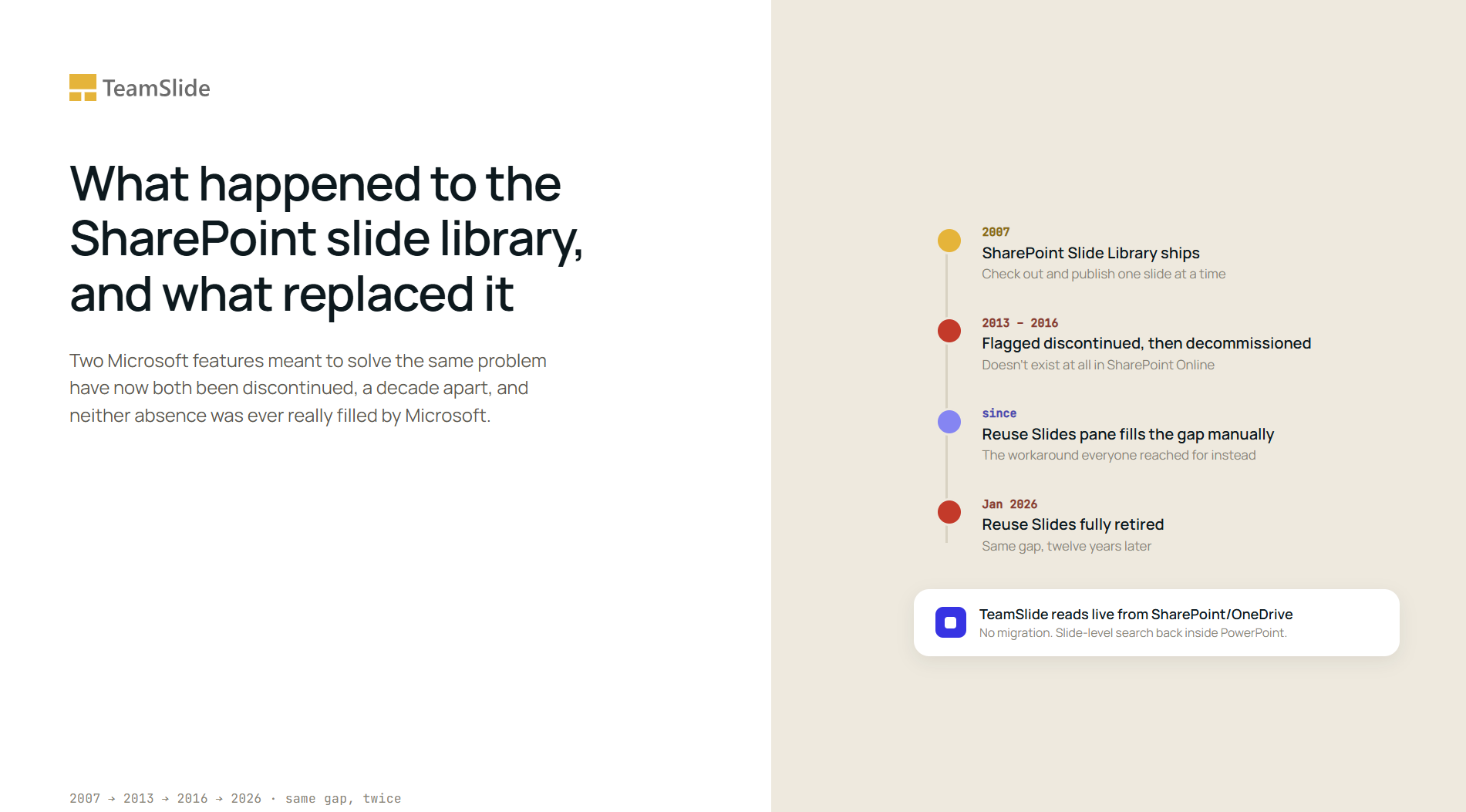
SharePoint's Slide Library arrived in 2007, a content type that let a team check out and publish one slide at a time instead of a whole deck, one of Microsoft's first design concessions that a slide is not just a small document. It lasted six years in that form. SharePoint 2013 flagged it as discontinued, and by the time SharePoint 2016 shipped, it had been decommissioned outright. In SharePoint Online, the cloud version most organizations actually run today, it does not exist at all, and Microsoft's own answer to users asking for it back has mostly been a suggestion to submit feedback.
The workaround everyone reached for instead, PowerPoint's own Reuse Slides pane, is now following the same path. It has already been removed from most versions of PowerPoint and fully retired in January 2026. Microsoft's official guidance points users toward manually copying and pasting slides or duplicating whole presentations, even as the company keeps building out Copilot elsewhere in the app. Either path still leaves a person switching between files or tabs to actually locate and copy the slide, which is the exact friction the original feature existed to remove.
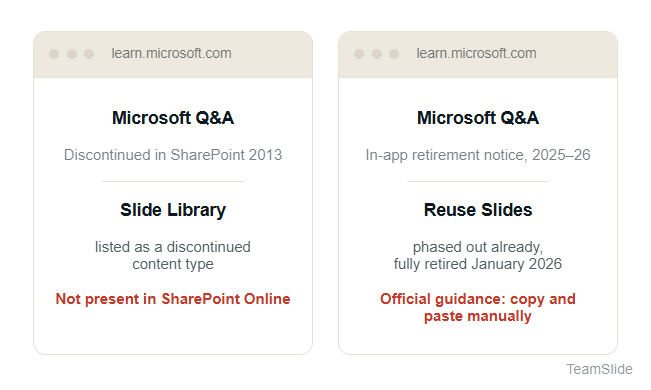
Laid end to end, the two notices trace one continuous timeline:

Removing the feature never removed the need for it
Without a native way to manage slides at that granularity, most organizations reverted to what one industry write-up calls the Frankenstein Method: a rep needs one specific slide, doesn't know where the master file lives, and pieces together a version from an old email attachment, a colleague's laptop, or whatever turns up first in a search across three different drives. The deck that results is functional but stitched together from sources nobody can vouch for.
The cost of that pattern is measurable. Industry research puts the toll at roughly 440 hours per seller per year hunting for or recreating content, and separate research covered on HubSpot's blog found reps spending 31 percent of their time on the same activity rather than on the work it's meant to support. None of that is a search problem in the narrow sense. It is what happens when the tool people build decks in and the system that actually holds the approved content stop talking to each other.
A content management system and a slide library solve different problems
SharePoint, OneDrive, Box, and Google Drive are systems of record: they handle permissions, storage, versioning at the file level, and who is allowed to see what. None of them were built to answer a much narrower question a person actually has mid-deck, which single slide, buried inside which of four hundred files, has the number I need. That is a slide-level search and retrieval problem, and it has to be solved from inside PowerPoint or it doesn't get solved at all. In practice, users often have to leave PowerPoint, search a document library, download a file, and copy a slide across just to finish a paragraph of a deck.
The original Slide Library tried to fold that second layer directly into the content management system itself, as a special content type living inside SharePoint. That is part of why it broke so easily: it depended on an Internet Explorer-only browser feature, and once organizations moved off IE, the feature had nothing left to stand on. Building the slide-level layer as a property of the storage system turned out to be the wrong place to put it.
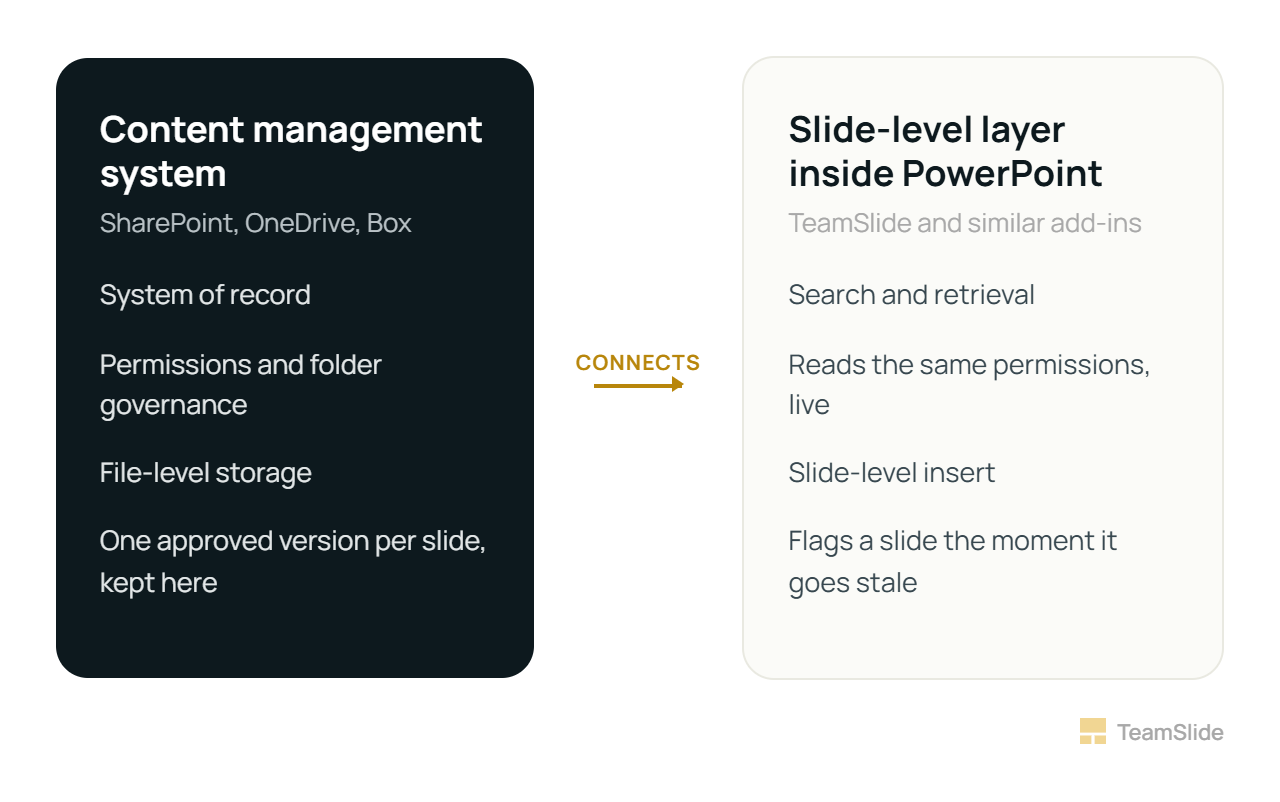
TeamSlide connects to your content system instead of replacing it instead of replacing it
TeamSlide closes that gap by reading directly from the content system a team already has, rather than asking them to adopt a new one.
We connect directly to SharePoint, OneDrive, Box, Google Drive, and Dropbox, and pull in specific sites, folders, and metadata rather than an entire tenant at once. No content gets migrated into a separate store. The content management system stays exactly what it already was, the single source of truth, and our add-in sits inside PowerPoint reading from it live.
This is close to a return to first principles rather than a new idea. Our own team wrote in 2015, not long after the original deprecation, that any real fix would need to be tightly integrated with both PowerPoint and whatever content repository a customer already had, rather than asking anyone to adopt a second system. A decade of the same pattern repeating itself, most recently with Reuse Slides, has only confirmed that the diagnosis was right the first time.
Connecting to the content system is what makes version control possible
The practical advantage of reading directly from SharePoint or OneDrive, rather than relying on a static copy, is version control. Our integration syncs automatically and flags slides as soon as a newer version is detected. That means a slide already sitting in an open deck is marked as outdated as soon as it no longer matches the source, with a one-click option to update it. Because TeamSlide reads directly from the content system, it can compare slides against the current approved version in real time and flag them for a one-click update whenever they become outdated.
The same connection is also what lets an admin's existing governance carry over instead of getting rebuilt. Whatever folders are already restricted in SharePoint, whatever review process already gates what counts as approved, stays exactly as it was; the add-in only ever surfaces what it has been pointed at. Because TeamSlide works directly with the existing content system, the governance, permissions, and approval process an organization already has remain intact.
Before Connecting a Content System to a Slide Library
Which sites or folders should be visible, and which stay excluded
Whether existing metadata fields map onto anything the library can search
Who owns approving new folders as they get added later
How a slide gets flagged as stale, not just how it gets found
The slide library SharePoint discontinued and the pane PowerPoint is retiring were never really the point. The point was always whether the system a team already trusts and the tool sitting inside their deck ever bothered to talk to each other, and for most of the last decade, they didn't.
A slide library works best when it never leaves your content system
The teams that got the most out of SharePoint's old Slide Library never actually stopped using SharePoint, they just needed PowerPoint to see inside it. TeamSlide connects to the SharePoint, OneDrive, or Box folders already in place and makes every approved slide searchable and insertable without a migration.
FAQs
What happened to SharePoint's Slide Library feature?
SharePoint's Slide Library was flagged as discontinued starting with SharePoint 2013 and is no longer available at all in SharePoint Online, so anyone looking for it in a cloud site today will not find it. Microsoft attributed the removal to a design limitation in the newer platform rather than shipping a replacement alongside it.
Is PowerPoint's Reuse Slides feature also being discontinued?
Yes. Microsoft is retiring PowerPoint's Reuse Slides pane, and it has already been removed from most versions with full retirement in January 2026. Microsoft's own guidance points to manually copying and pasting slides or duplicating whole presentations, which still takes more manual work to find and copy the right slide than the old pane did.
What is a good replacement for the SharePoint slide library?
A PowerPoint add-in that connects directly to the SharePoint, OneDrive, or Box folders a team already uses is the closest functional replacement, since it restores slide-level search and reuse without asking anyone to migrate content into a new system. TeamSlide is one example built specifically around that pattern.
Does TeamSlide replace SharePoint or OneDrive?
No. TeamSlide connects to SharePoint, OneDrive, Box, Google Drive, and Dropbox rather than replacing any of them, so the content management system a team already governs stays the single source of truth. TeamSlide adds a slide-level search and insert layer inside PowerPoint on top of that existing system.
Does connecting a slide library to SharePoint require migrating content?
No migration is required. The library reads directly from the sites and folders an admin chooses rather than copying files into a separate store, which also means the permissions and folder structure already set up in SharePoint carry over automatically.
Can a connected slide library flag outdated or off-brand slides automatically?
Yes. Because the library reads live from the content system rather than a static copy, it can compare a slide in an open presentation against the current approved version and flag it once that version has changed. That check only works because the library and the content system are actually connected, not because the library happens to search faster.
Which content management systems can a PowerPoint slide library connect to?
The common ones are SharePoint, OneDrive, Box, Google Drive, and Dropbox, and most modern slide library tools support picking specific sites, folders, and metadata rather than connecting an entire tenant at once, which is what lets an admin control exactly what shows up inside PowerPoint.



More from our blog
Discover insights and strategies for better presentations