
Give your AI your firm’s slides.
Claude and Microsoft Copilot can draft a slide in seconds. TeamSlide MCP makes that slide yours: the assistant reuses what your team has already approved, and builds anything new on your templates. The first draft already looks like your firm made it.
AI can draft a slide. It can't draft yours.
General-purpose assistants start from a blank page. They don’t know which slides your firm has already approved, which version is current, or what your master looks like. So the draft is fast, and the clean-up is slow.
It rebuilds what already exists
Your team has a vetted case study, a methodology slide, a team page. The assistant writes a new one from scratch anyway.
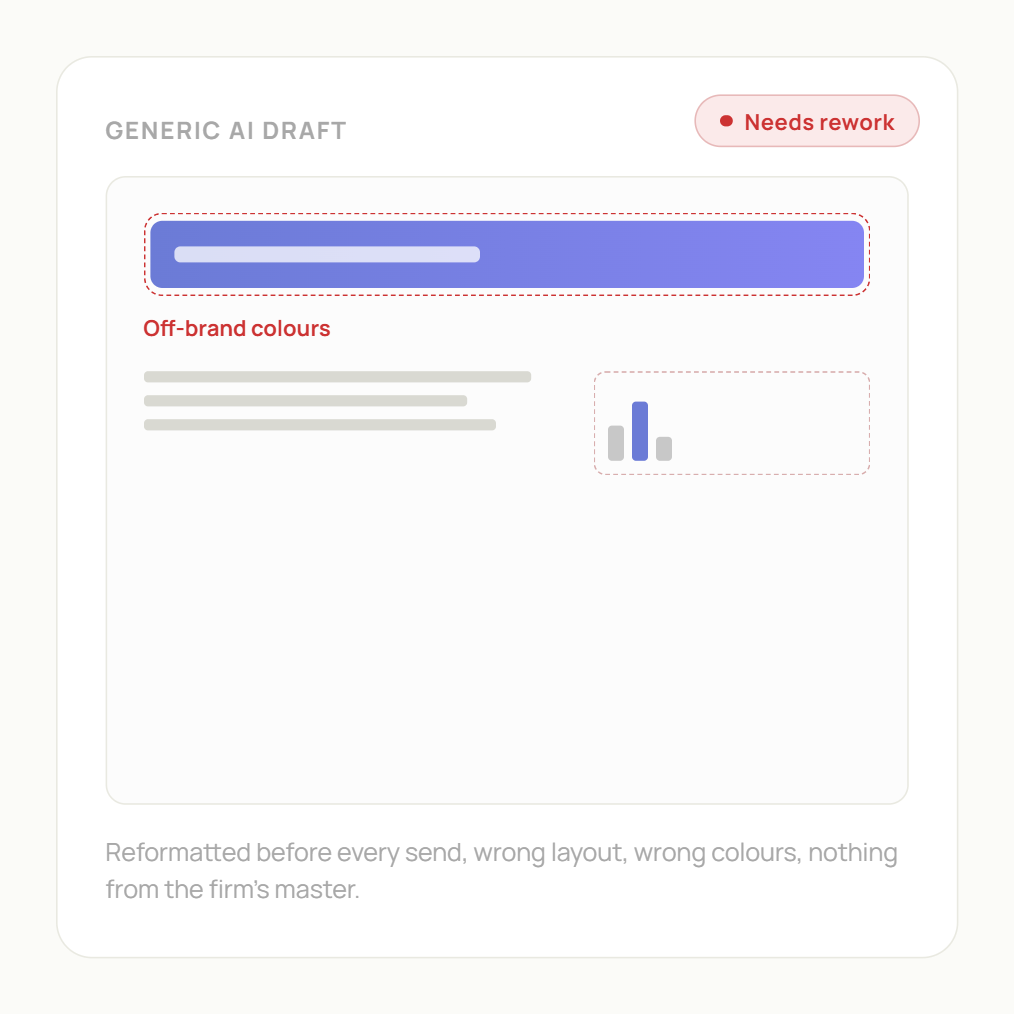
It looks like AI, not like your firm
Generic layouts, colours and type. Every slide gets reformatted before it goes anywhere near a client.
It finds files, not approved slides
Copilot can surface decks from SharePoint, last year's alongside this quarter's. It can't tell which single slide inside them is the approved one.
It can’t tell what it shouldn’t see
A general assistant pulls whatever it can reach, restricted decks included. It has no sense of which slides are approved for which audience.
One connection between your assistant and your approved content
TeamSlide already indexes your library slide by slide. The MCP server opens that library to your assistant, with the same permissions and versions as the PowerPoint add-in.
Start on-brand. Don’t fix it afterwards.
Checking AI output after the fact catches mistakes. Giving the assistant your approved content up front avoids them. TeamSlide works before the slide is drafted, not after.
Generate, then fix
- The assistant drafts a generic slide
- Someone reformats it to the master
- A checker flags what still doesn’t match
- Someone finds the approved version existed all along
Start from what’s approved, with TeamSlide MCP
- The assistant looks in your library first
- Approved slides are reused as they are
- New slides start from your templates
- Nothing left to clean up before it goes out
Your assistant knows which library to use
Every TeamSlide MCP server ships with a ground rule. You add a short line per library. The assistant reads both before it answers.
Look in the firm’s library first
Prefer approved slides and templates over building from scratch, and keep the firm’s master when a slide is downloaded.
- Sales · Approved - Use for prospect pitches and case studies.
- Templates · Masters - Starting point for every new slide.
- [Your library] - When the assistant should use it.
Ask for a slide the way you’d ask a teammate
Real stories from customers who simplified their workflow and created smarter, faster ways to manage PowerPoint content.
Built on the library you already trust
Same rules as the rest of TeamSlide. See security and permissions for the detail.
Slides stay where they are. The MCP server sits on the library TeamSlide already keeps in sync.
People only see slides they can already see in TeamSlide. Nothing leaks through the chat.
Version control carries across from the add-in. No older copy from someone’s laptop.
At rest and in transit on Microsoft Azure, never shared or sold, with regular independent penetration tests.
Works with the AI your firm already uses
Step-by-step guides for Claude and Microsoft Copilot. Any MCP-compatible assistant connects the same way. The PowerPoint add-in stays how you assemble the deck; the MCP server is how your assistant reaches the same library.
FAQ
Everything you may be wondering about TeamSlide MCP
Model Context Protocol, an open standard for connecting AI assistants to outside tools. TeamSlide MCP is how Claude or Copilot reaches your slide library.
Copilot searches files. TeamSlide indexes individual slides, knows which ones are approved and current, and exposes your templates. That’s the difference between finding a deck and finding the right slide.
Through your masters and templates. The assistant starts from your layouts instead of a generic AI style, so there’s nothing to reformat later.
No. Permissions follow the TeamSlide library. People see exactly what they would see in the add-in.
No. The add-in is still how you insert slides into a deck. The MCP server gives your assistant a way into the same library.
No. Slides stay in SharePoint, OneDrive, Box, Google Drive or Dropbox. The MCP server works on the library TeamSlide already syncs.
Search by library, read slide metadata, preview slides and download individual slides, plus expose your templates as the starting point for new ones.