Why SharePoint Alone Is Not Enough for Enterprise Slide Management

TL;DR
- SharePoint has no slide-level search, so finding a specific chart or table means opening file after file until you get lucky.
- Without a governed slide library, the same deck gets duplicated across dozens of folders, each copy drifting further from the approved version.
- Sales reps and consultants rebuilding slides from scratch instead of reusing approved content is a direct cost to revenue-generating time.
- A dedicated slide library sits inside PowerPoint and makes any slide in your SharePoint or OneDrive instantly searchable without restructuring your storage.
- Teams that move to a slide library spend less time on content archaeology and more time on the work that actually moves a deal or a project forward.
You need the market sizing slide from last quarter. You open SharePoint, search for it, get forty file results, and spend the next half hour opening decks one by one. You rebuild it from scratch anyway.
This is not a storage problem. It is a retrieval problem, a governance problem, and for any team where presentations are a primary work output, it is a productivity problem with a direct cost. Sales enablement managers, marketing operations leads, and consulting operations directors at mid-to-large organisations all describe the same friction: the content exists, but getting to the right slide at the right moment is harder than it should be.
The scale of the problem is not trivial. According to a McKinsey Global Institute report, knowledge workers spend 1.8 hours every day searching for and gathering information. For a team of fifty people, that is the equivalent of nine full-time employees doing nothing but looking for content. SharePoint was built to store files. It was not built to manage slides.
1. SharePoint has no slide-level search
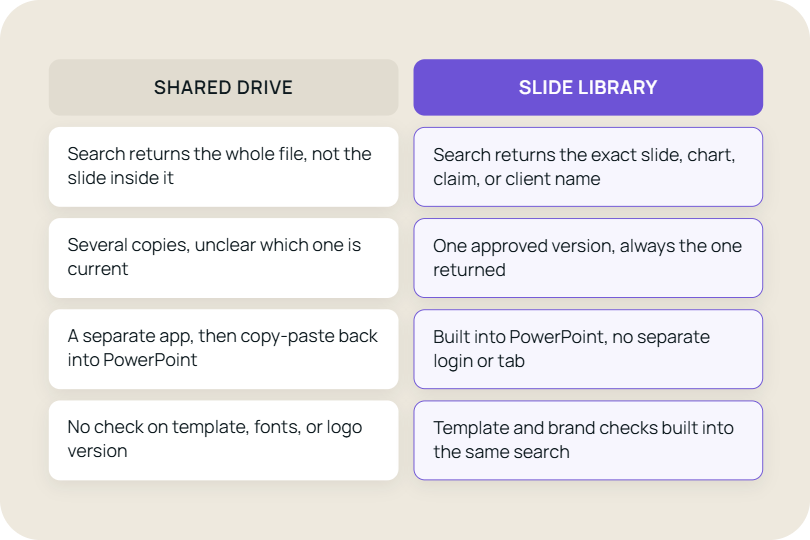
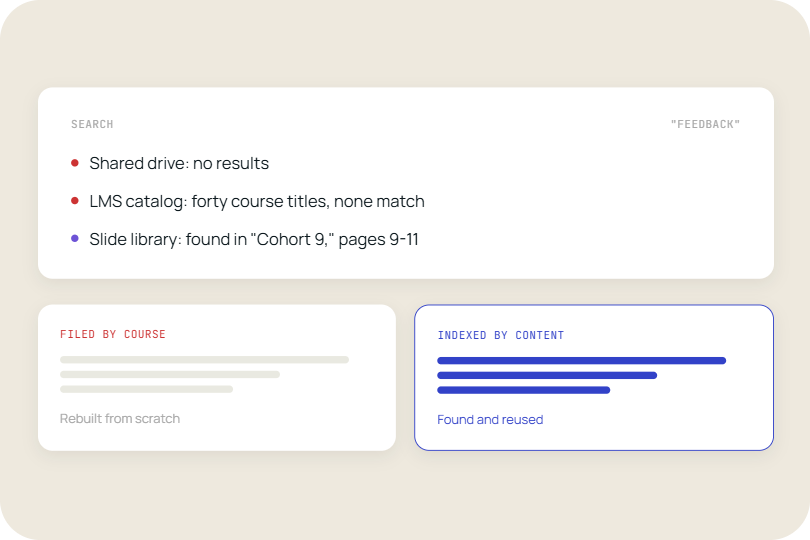
Every search in SharePoint returns files, not slides. That distinction matters more than it sounds.
A typical enterprise deck has thirty to eighty slides. When a sales rep needs the competitive positioning slide or a consultant needs the project timeline template, SharePoint offers one path: open the file, scroll through it, decide it is the wrong one, close it, try the next. There is no way to search across slides as discrete objects. There is no thumbnail view that shows you what is inside a deck without downloading and opening it. The slide is invisible until the file is open.
The result is that people stop searching and start rebuilding. A 2023 study by Wakefield Research commissioned by Conga found that 83% of employees say they recreate documents that already exist somewhere in their organisation. In a presentation-heavy environment, that means approved, on-brand content sits unused while teams spend time producing lower-quality substitutes.
A dedicated slide library solves this by indexing content at the slide level. You search for "market sizing EMEA Q1" and see matching slides from across every connected deck, with thumbnails, instantly. You click the one you want and insert it directly into your open presentation. The file structure in SharePoint does not change. The slides just become findable.
2. Version control in SharePoint stops at the file, not the slide
SharePoint tracks versions of files. It does not track which slide within a file has changed, who changed it, or whether the version someone is reusing is still approved.
In practice, this means a single slide can exist in a dozen different states scattered across different decks in different folders. The pricing slide your sales team used last month may have been updated by marketing. The methodology slide your consultant inserted may come from a superseded engagement template. Nobody knows, because there is no signal inside PowerPoint to tell them. They find a slide, it looks right, and they use it.
This is a brand and compliance risk in regulated industries. For a firm where slide content carries legal, financial, or reputational weight, the absence of slide-level version control is a meaningful exposure. The 2024 Gartner report on content governance notes that content sprawl in enterprise storage is one of the top three barriers to effective knowledge reuse.
A slide library introduces a governed layer: slides can be marked as approved, updated centrally, and flagged as outdated. When a consultant or rep inserts a slide from the library, they are pulling the current approved version. When that slide is updated at the source, the library reflects the change. SharePoint remains the storage layer. Governance happens above it.
3. Shared folders create duplication, not organisation
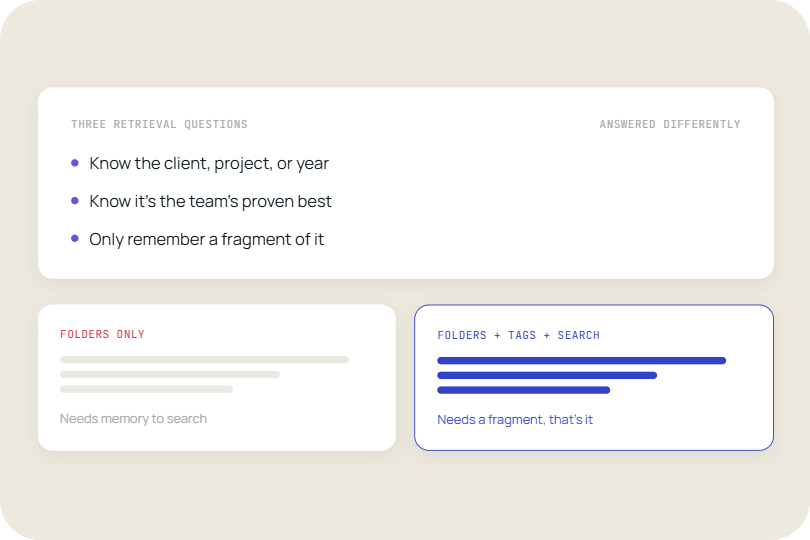
The instinct to organise slides in SharePoint by creating more folders is reasonable. It does not work.
Folder structures made sense when documents were authored by individuals and accessed by a small team. Enterprise presentation libraries do not work that way. A single deck is relevant to multiple teams, multiple regions, and multiple use cases. It gets copied into each relevant folder. Each copy then gets edited locally for a specific meeting. Within six months, the same core slide exists in seventeen locations in varying states of accuracy, and no one has a reliable way to know which one is right.
The alternative, a single authoritative folder, creates a different problem: findability. A flat library of 400 decks is not navigable. Without slide-level search, the folder structure is just a different shape of the same problem.
Compare this to a slide library workflow. A team at a global consulting firm using TeamSlide connects their SharePoint to the library without moving a single file. The slides become searchable across all connected folders. There is no need to choose between organisation and accessibility, because the search layer handles retrieval regardless of where the file lives. Duplication does not disappear overnight, but new duplication stops.
4. SharePoint has no usage data for presentation content
SharePoint tells you how often a file was accessed. It does not tell you which slides in that file anyone actually used.
For a sales enablement manager trying to understand whether the new pitch deck is being used, file-level analytics are nearly useless. A rep who opened the file to copy one slide registers the same access as a rep who read every page. For a marketing operations lead trying to retire outdated templates, there is no signal showing which slides are actively being inserted into new decks and which have not been touched in two years.
This gap makes content strategy a guessing game. Teams invest in producing slides with no feedback loop on what gets used, what gets ignored, and what gets modified by reps before use. According to Forrester Research, 65% of content created by marketing is never used by sales. Without slide-level usage data, there is no way to know whether the problem is the content itself or simply that sales cannot find it.
A slide library with usage analytics closes this loop. Enablement and marketing teams can see which slides are inserted most often, which are modified before use (a signal that the approved version does not quite fit the need), and which have not been touched since they were published. That data informs what gets updated, what gets retired, and what gaps need to be filled.
5. Onboarding new team members in SharePoint is slow and inconsistent
A new sales hire or a new consultant joining a project has no guided path through the presentation library in SharePoint. They are handed folder access and left to figure out what exists.
In most organisations, the knowledge of where the good slides are lives in people, not in systems. Senior reps know which deck has the best pricing model. Experienced consultants know which methodology slides have been client-approved. That knowledge transfers informally, in conversations, over weeks. Until it does, new team members either ask colleagues repeatedly or spend disproportionate time searching and rebuilding.
The cost compounds in high-turnover sales environments. Onboarding time to first productive pitch is a known metric in sales operations, and content accessibility is a direct input. A new rep who cannot find the right deck without asking someone uses more of everyone's time and is slower to self-sufficient performance.
A slide library makes content self-service from day one. Search works on the first login. There is no folder structure to learn, no institutional knowledge required to find the most recent version of a core slide. For organisations using TeamSlide, the library is accessible directly from the PowerPoint ribbon, meaning the workflow is embedded in the tool the team already uses.
The structural shift that changes how teams work
The organisations that outgrow SharePoint for slide management are not doing so because they have more content than it can store. They are doing so because the gap between storage and usability has become a tax on productive time. SharePoint is a capable file repository. The problem is that a file repository was never designed to support the way enterprise teams actually work with presentations: searching for a specific visual, reusing a proven slide, maintaining consistency across a hundred different outputs produced by people in different offices with different levels of design judgment.
The shift from file-centric to slide-centric content management is not a technology change so much as a workflow change. The files stay where they are. The layer above them changes, and with it, the behaviour of the people who depend on that content.
When the move to a slide library becomes necessary
Most teams do not make this move proactively. They make it when the cost of the status quo becomes visible. These are the signals:
- Reps or consultants regularly ask colleagues where specific slides are, rather than finding them independently.
- Brand reviews consistently find approved decks in circulation alongside outdated or off-brand versions.
- Content produced by marketing or strategy teams is not appearing in client-facing work at the rate it should.
- New hires take more than four weeks to become self-sufficient in finding and reusing presentation content.
- There is no reliable way to know which slides have been used in the last quarter and which have not.
- The same slide exists in multiple versions across different folders, and no one is certain which is current.
Any two of these present simultaneously is a signal that the file management layer is working against the team. The cost of not acting is not abstract: it is hours of productive time per person per week, compounded across every person who touches a deck.
The productivity case for extending SharePoint with a slide library
SharePoint will not be replaced as the storage infrastructure for most enterprise organisations. It does not need to be. The gap is not in where files live. The gap is in the layer between the file and the person who needs a specific slide from it.
Sales teams that cannot find approved content build their own. Consulting teams that cannot locate a methodology slide rebuild it from a vague memory. Marketing teams that cannot see whether their slides are being used cannot improve what they produce. These are not edge-case inefficiencies. They are the normal operating mode for any team managing a significant presentation library through a generic file storage system.
A purpose-built slide library does not replace the storage infrastructure. It makes it functional for the use case it was never designed to serve. The practical implication: teams that implement one reduce the time between "I need a slide" and "the right slide is in the deck" from minutes or hours to seconds. That time, multiplied across a large team over a year, is a material return.
TeamSlide is built to support this transition. It sits directly inside PowerPoint, giving teams a searchable, slide-level layer that makes existing content easy to find, reuse, and manage without changing how they work. If your content already lives in SharePoint, OneDrive, or another system you rely on, there is no need to move it. TeamSlide connects directly, so your existing library becomes instantly searchable from day one. Schedule a demo
FAQ
Is SharePoint not enough for managing presentation slides?
SharePoint is a capable file storage and collaboration platform, but it was not designed to manage slides as discrete objects. It has no slide-level search, no slide-level version control, and no usage analytics at the slide level. Teams with large presentation libraries find that SharePoint makes content hard to retrieve quickly, which leads to slides being rebuilt rather than reused. A dedicated slide library adds a search and governance layer on top of SharePoint without replacing it, making existing content significantly more accessible.
What is the difference between a slide library and a shared folder in SharePoint?
A shared folder in SharePoint organises files by location. A slide library indexes content at the slide level, so you can search for a specific chart, table, or page across every connected file without opening any of them. Where a shared folder requires you to know which file to open, a slide library lets you search for what you need and see matching slides with thumbnails immediately. The files remain in SharePoint. The slide library is the search and retrieval layer above them.
How do slide libraries help sales teams stay on brand?
When sales reps cannot find approved slides quickly, they build their own. Those self-built slides typically do not meet brand standards. A slide library surfaces approved, current content directly inside PowerPoint so reps insert the right slide rather than recreating it. Slide-level governance means the library can flag outdated content and surface updated versions automatically. The result is more consistent decks going to buyers, with less effort from both the rep and the brand team reviewing output.
Do companies still need a slide library if they already use SharePoint and Microsoft 365?
Yes. Microsoft 365 and SharePoint handle file storage, co-authoring, and access control well. They do not handle the problem of finding a specific slide within a large content library, tracking which slides are being used, or ensuring that people insert current approved versions rather than outdated copies. A slide library is not a replacement for SharePoint. It is a layer that makes the presentation content already stored in SharePoint usable at the speed and precision that enterprise teams need.
How long does it take to set up a slide library connected to SharePoint?
Tools like TeamSlide connect directly to SharePoint and OneDrive without requiring any file migration or folder restructuring. Setup typically involves connecting the relevant SharePoint site, selecting which libraries to index, and deploying the PowerPoint add-in to the team. For most organisations, the library is searchable within the few days the connection is made. The time-to-value is short precisely because the content does not move. The search layer is added to what already exists.
What should I look for when evaluating slide library tools?
The most important criteria are: whether the tool works inside PowerPoint rather than requiring a separate application, whether it connects to your existing storage (SharePoint, OneDrive, Google Drive) without requiring migration, whether search operates at the slide level with thumbnail previews, and whether there is slide-level usage analytics to support content governance. Secondary criteria include access control, approval workflows for slide updates, and admin tools for archiving outdated content. A tool that requires your team to change where files live will face adoption resistance from day one.



More from our blog
Discover insights and strategies for better presentations