
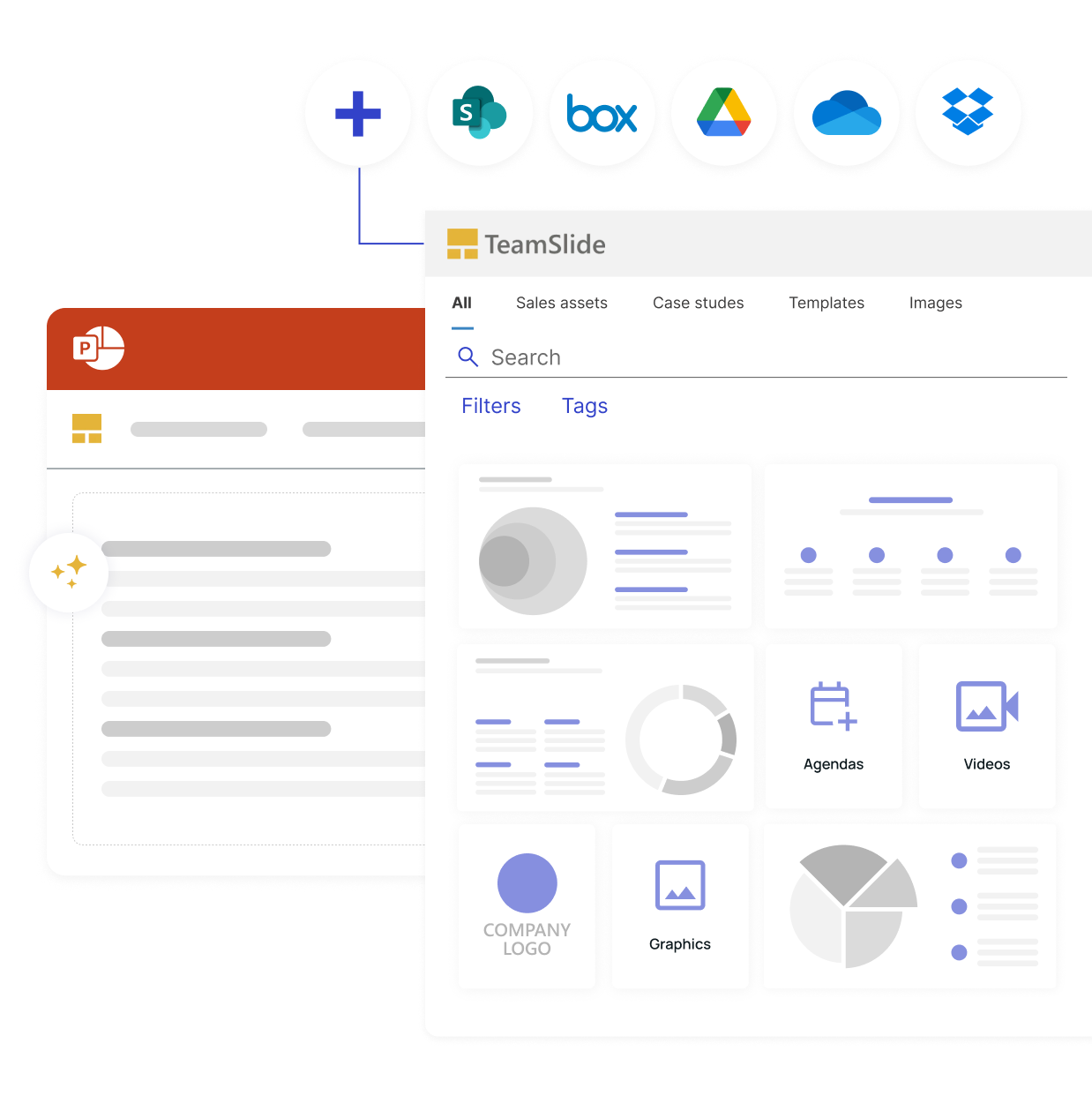
Many teams start looking for presentation management software after losing something they used to rely on. SharePoint once had a slide library feature that allowed teams to keep individual slides in one place, preview them and reuse them in PowerPoint. Microsoft removed the feature from SharePoint 2013 onward, and its support page now identifies the slide library as a SharePoint 2010 feature.
That change left many teams looking for another way to manage presentation content. Our earlier post described what that looked like for teams that upgraded SharePoint and suddenly lost the tool they used to share and reuse their latest slides.
The underlying problem didn't go away. When a sales team is preparing for a customer meeting, finding the right content quickly can have a direct impact on how much time the team spends actually preparing. The McKinsey Global Institute estimated that interaction workers, a group that includes salespeople, spend about 19% of their time tracking down information.
This guide looks at when presentation management software like TeamSlide makes sense and what to ask before choosing a solution. For a broader look at the different tool categories, see our buyer's comparison.
If several of these sound familiar, your current setup may be costing more time than it appears to.
People rebuild slides that already exist. Sales teams often have slightly different versions of the same slide for different industries, customers or company sizes. When those variations are difficult to find, people end up recreating them instead of reusing the work that already exists.
Search returns file names, not slides. Someone searches for "pricing" and gets a list of presentations. They then have to open several files and scroll through them before finding the slide they actually need.
Nobody can say which version is current. As our version control page explains, outdated slides can mean old messaging, expired data, missing updates or content that no longer reflects the current version.
You lost your slide library. An upgrade removed the built-in tool your team used to rely on, and nothing replaced it.
Your metadata is stuck. You may have spent years adding tags and metadata to content in SharePoint, but those fields don't help much if people still have to search through folders and files manually when building a presentation.
None of this necessarily means you have too little content. In many cases, the problem is that there is too much of it and people cannot find or trust what is already there. Forrester has reported that 65% of the content created for sales goes unused, often because it is outdated or difficult to use.
If a rep cannot find the approved pricing slide in a couple of minutes, the easiest option is often to build a new one. That creates another version, which makes the library harder to manage the next time someone needs the same content.
If your presentation content already lives in SharePoint, OneDrive, Box, Google Drive, Dropbox or Widen, you don't necessarily need to move it somewhere else. TeamSlide connects to these systems, lets you choose the folders you want to use and can pull in existing metadata.
With TeamSlide, no migration is required and your existing content system remains the source of truth. TeamSlide syncs hourly and identifies slides that are new, updated or deleted.
The basic setup is straightforward: your files stay in your existing content system while TeamSlide brings search, insert and version alerts into PowerPoint and lets AI assistants search your approved slides.
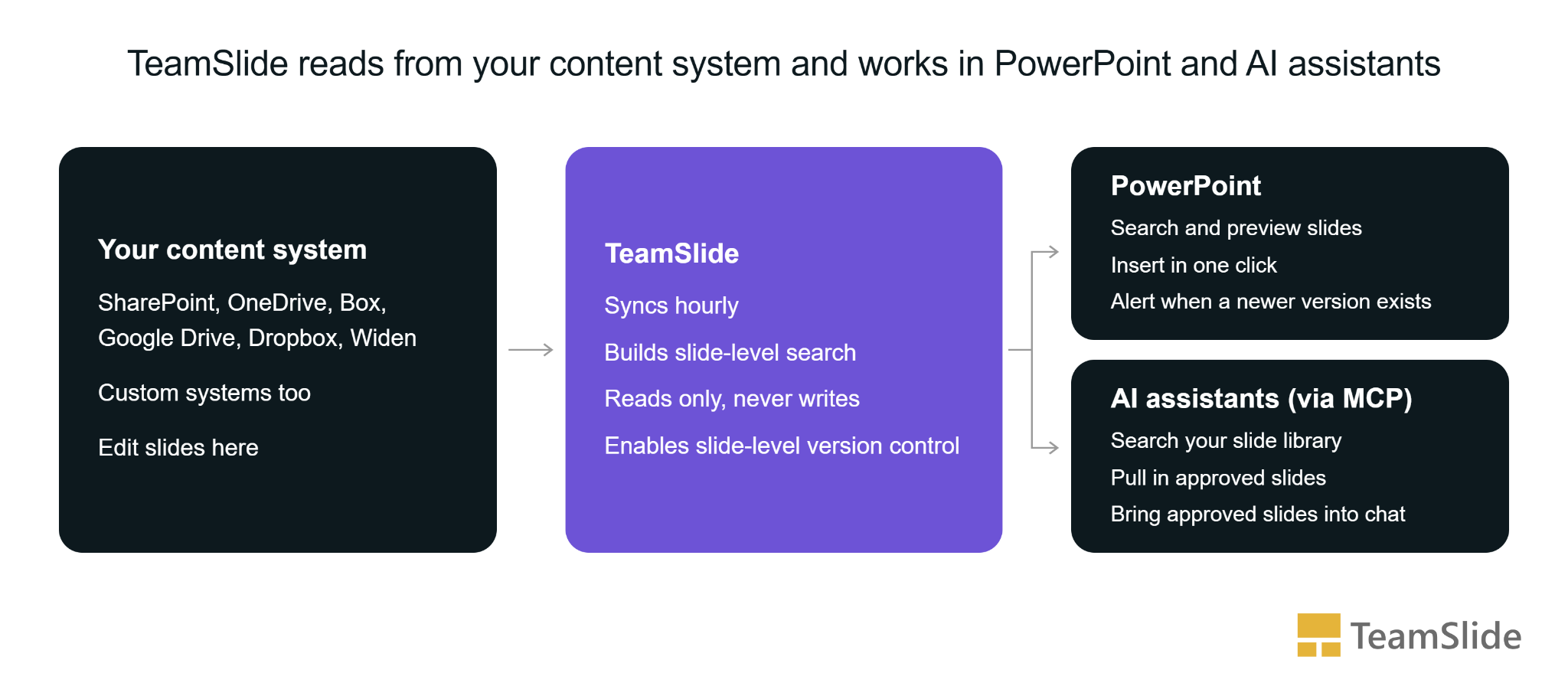
If PowerPoint is where your team spends most of its time, it makes sense for slide search to happen there too. TeamSlide lets users search, preview and insert slides directly inside PowerPoint, with adjustable thumbnails and filters for tags, categories and metadata.
The slide library is built around this idea: people should be able to find and reuse existing content without constantly switching between PowerPoint and folders or separate browser tabs.
Many people ask an AI assistant to put a deck together. It’s quick, but the assistant doesn’t know what your company has already approved. So it writes new slides from scratch, and those can have the wrong numbers, the wrong wording or the wrong look.
That’s where MCP comes in. MCP (Model Context Protocol) is a standard way for AI assistants to connect to other tools and data.
Say a sales rep asks an assistant for a six-slide deck for a bank. Without access to your library, the assistant makes up a pricing slide and a security slide. The pricing is out of date, and the security slide says things legal never signed off on. The rep might not notice until the customer does.
With TeamSlide’s MCP connection, the same request works differently. The assistant looks through your slide library and brings the approved pricing and security slides into the chat. The rep can then ask it to change the customer name or update a figure. The rep still gets a draft in minutes, but it starts from slides your team already trusts.
This works with any AI assistant that can connect through MCP, including Claude and Microsoft Copilot, so you don’t need to switch tools. Your files stay in your content system and TeamSlide still reads from it rather than taking it over.
The problem with an outdated slide is not always obvious until it reaches a client or customer. A pricing figure, product detail or piece of messaging can change while an older version continues to circulate in presentations.
When a team member opens a presentation containing a linked slide, TeamSlide checks whether a newer version is available and shows an alert in PowerPoint. The user can update the slide, insert a copy or ignore the alert.
TeamSlide also checks regularly against the connected content system, so changes to content do not have to depend entirely on someone remembering to tell everyone else that a slide has changed.
A large presentation library can become difficult to manage when different teams, regions or brands need access to different content. TeamSlide lets administrators set permissions within libraries at the user or group level and supports SSO, including assigning users to groups based on their SSO security groups.
This can be useful when different teams, regions or brands need access to different parts of the presentation library. Learn more about TeamSlide's slide library setup.
Getting a presentation library under control is not always just a matter of installing a tool. There may be years of existing content, several content owners and different teams that need to use the library.
Our support team can help with connecting content libraries, setting permissions and training users. That can be particularly useful when the library has grown over several years and no single person owns all of the content.
Before choosing a presentation management tool, there are a few practical questions worth answering. They come from our earlier guide to evaluating SharePoint slide library replacements, and they are still useful when comparing options.
There are also a few questions that are easy to overlook. Our earlier guide recommends asking about support during setup and adoption, whether the tool is cloud-based or needs an on-premise option, storage limits and the access rules you need.
Ask every vendor, including us, for clear answers to these questions before you commit.
Another question is worth adding: what happens to your content if you stop using the tool? With TeamSlide, your files remain in your existing content repository. TeamSlide reads from the repository rather than becoming the place where your original files have to live.
TeamSlide is designed for teams that regularly create and reuse presentations, including consulting, sales, marketing, finance and leadership teams.
It is particularly useful for organisations where people spend too much time searching for slides, rebuilding existing content, dealing with outdated versions or trying to manage a large presentation library.
If you're still not sure whether presentation management is something your team needs, the easiest way to find out is to test it against a real problem.
Pick a slide that people on your team regularly struggle to find, connect your existing content library and see how quickly TeamSlide can surface it.
Schedule a demo and bring a real example from your own library. That will give you a much better sense of whether TeamSlide fits your existing workflow than a feature checklist ever will.
There is no fixed number of decks at which a company needs presentation management. The better indicator is how much time people spend finding and trusting the right content.
Typical signs include people rebuilding slides that already exist, several versions of the same slide being used, and searches that return file names instead of the individual slides people actually need. A very small team with only a few decks can stay with a shared folder for longer. The need for presentation management becomes more obvious as the library grows and more people need to reuse individual slides.
Microsoft removed the slide library from SharePoint 2013 onward, and a Microsoft support reply describes it as discontinued in SharePoint Online.
For teams that still need slide-level search and reuse, tools such as TeamSlide provide an alternative. TeamSlide connects to the SharePoint content you already have and adds slide-level search and reuse inside PowerPoint.
No migration is needed. You choose the sites and folders you want to connect, while your existing content system remains the source of truth. Your files stay where they are rather than needing to be moved into a separate repository.
TeamSlide connects to SharePoint, OneDrive, Box, Google Drive, Dropbox and Widen. TeamSlide syncs hourly and identifies slides that are new, updated or deleted. It can also pull in existing metadata, allowing users to filter by custom properties and content type. If you use a custom or in-house system, we can support that too. Talk to our team about your setup.
Yes. TeamSlide connects through MCP, so it works with any AI assistant or agent that supports it, including Claude and Microsoft Copilot. The assistant can search your slide library and bring approved slides into the chat. Your files stay in your existing content system.
Yes, for slides that were inserted through TeamSlide and only when you choose to. When someone opens the presentation, TeamSlide checks the linked slides and shows an alert in PowerPoint if a newer version is available. The user can update the slide, insert a copy or ignore the alert.
TeamSlide supports SSO, and administrators can assign users to groups based on their SSO security groups. Permissions are set within libraries at the user or group level. Access is not enforced per slide and does not automatically inherit SharePoint permissions, so the required access rules need to be configured within TeamSlide.