
TL;DR
You are evaluating slide management tools. Your shortlist probably includes a digital asset management platform, a third-party template management tool, a browser-based presentation builder, and TeamSlide. The vendor materials for each category describe similar outcomes: faster deck assembly, better brand compliance, less duplicated effort.
The main differences come down to how each tool stores content, connects to PowerPoint, and handles governance. Those choices also affect how easily a sales team can actually adopt the tool.
According to McKinsey Global Institute, employees spend 1.8 hours per day on average searching for information. For sales and consulting teams, a significant share of that time is spent locating presentation content that already exists in the organisation. The faster they can find that content, the more of that time they get back.
Every category in the slide management market stores content in files. The critical difference is the granularity at which content is indexed and returned to the user.
Shared folders and cloud drives index at the file level. A search query returns a list of file names. The user opens the file, navigates to the relevant slide, and copies it manually. In practice, that means finding the right slide still requires opening the file and looking through it.
Generic digital asset management platforms index assets at the file level as well, though some support metadata tagging at a finer granularity. A PowerPoint file is treated as a single asset. The user downloads the file, opens it in PowerPoint, and extracts what they need. So finding a specific slide can still require opening the presentation and looking through it.
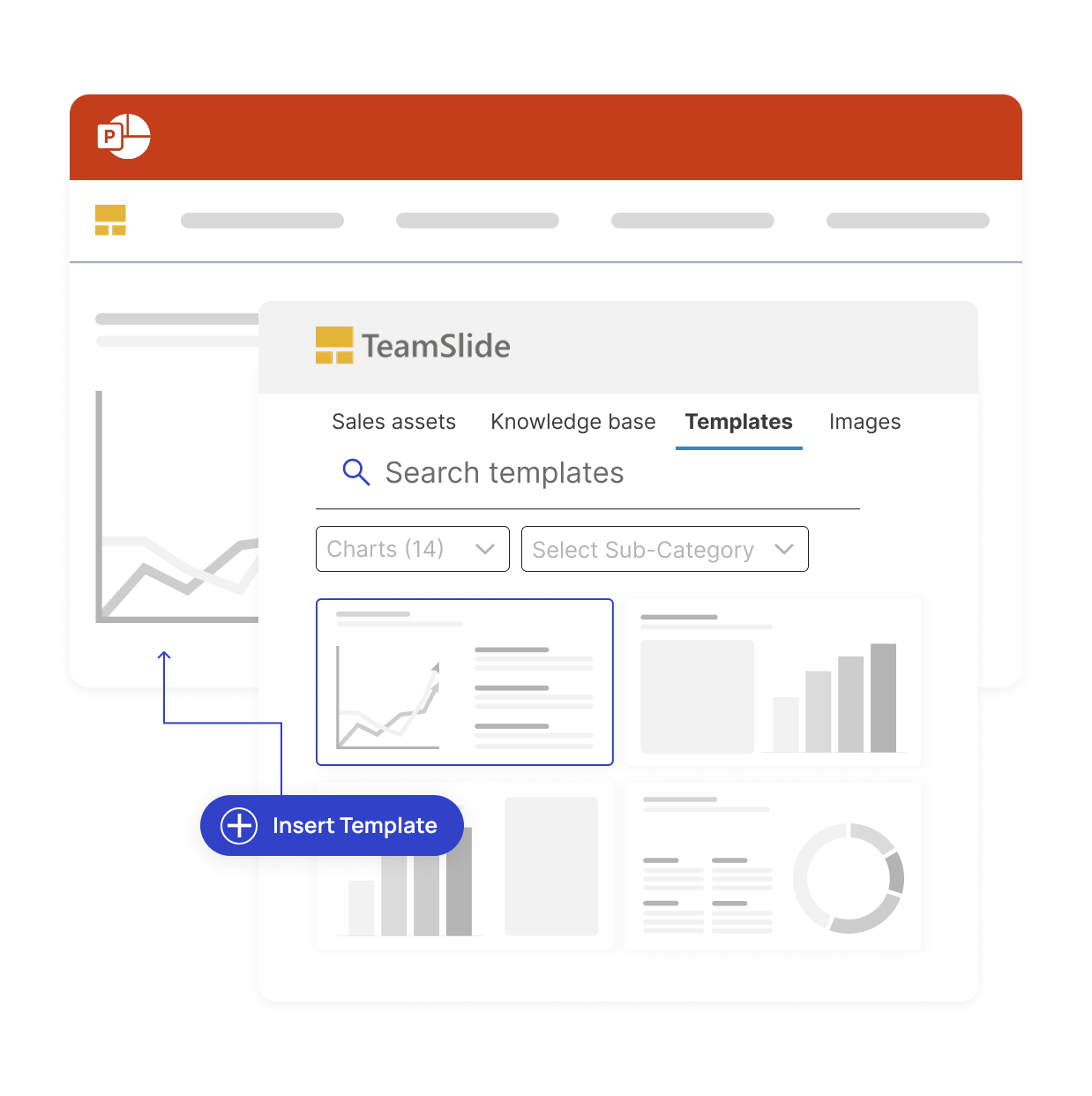
TeamSlide indexes at the slide level across all connected files in a SharePoint or OneDrive library, regardless of how those files were originally authored. A search query returns individual slides with thumbnail previews, title metadata, and source file attribution. The user confirms the slide is the right version, clicks once, and it inserts directly into the active deck. Finding the right content is a common daily friction point for sales teams. Slide-level indexing resolves this at the retrieval layer, without asking anyone to change their workflow.
For teams that regularly reuse existing slides, this means less time spent opening decks and copying content manually.
How a tool connects to PowerPoint matters because it affects how much the user's workflow has to change.
Cloud-based presentation platforms replace PowerPoint entirely. They operate in a browser and export to .pptx format for distribution. Digital asset management platforms typically provide a PowerPoint plugin that opens a browser-rendered panel inside the application. The user searches within the panel, downloads a file or slide pack, and then copies content into their active deck. This is two context switches: one to the plugin panel and one back to the deck. For a rep preparing a deck before a call, that friction accumulates.
TeamSlide installs as a PowerPoint add-in that renders natively inside PowerPoint's task pane. The search interface, thumbnail previews, and one-click insertion all operate directly within PowerPoint through the task pane add-in experience. No browser is opened. No file is downloaded and re-opened. The active deck receives the slide directly. For enterprise deployments, the add-in is distributed through the Microsoft 365 admin center and requires no local installation by individual users.
Forrester Research has documented that adoption of content management tools drops sharply when the tool requires users to change their core application context. Keeping the experience inside PowerPoint means users don't have to learn a separate workflow just to find and reuse a slide.
Most enterprise content management tools require a migration event: existing content must be exported from its current location, re-imported into the new system, re-tagged, and in many cases, restructured to conform to the new system's data model. For a firm with ten years of PowerPoint files across multiple SharePoint sites, this is a project measured in weeks, not hours.
Digital asset management platforms typically maintain a proprietary content database as their primary system of record. Many modern DAMs do offer SharePoint connectors, but these integrations generally require content to be ingested, tagged, and mapped into the DAM's own metadata schema before it becomes searchable within the platform. The connector syncs files across systems, but the DAM's search and governance layer still works from its own indexed copy, one step removed from your actual SharePoint structure. For teams with large, untagged PowerPoint libraries, that ingestion and tagging requirement is still a significant upfront investment before the tool becomes useful.
Third-party template management tools built on SharePoint avoid migration because they operate within SharePoint directly, but they typically require content to be organised according to a specific folder structure or tagged using the module's own metadata schema. Existing libraries that use a different naming convention or folder hierarchy must be restructured before they are functional within the module.
TeamSlide connects directly to your existing storage without requiring you to reorganise or re-upload your files. It authenticates against SharePoint, OneDrive, Box, Google Drive, Dropbox, and other content repositories using Microsoft OAuth, reads the existing file and folder structure as-is, and builds a searchable index of supported content from connected libraries and refreshes results regularly. This replication runs frequently to keep results current. Crucially, no migration or restructuring of your SharePoint environment is required: your files stay where they are.
This makes deployment simpler than tools that require a separate migration or restructuring project. The index builds in the background. Users can begin searching while indexing is still in progress. For organisations that want to avoid a separate migration or restructuring project, this can simplify implementation.
For slide libraries, governance usually comes down to three things: access, version control, and keeping outdated content from being reused.
Shared folders enforce access at the folder level through SharePoint or NTFS permissions. If a user has access to a folder, they typically have access to every file in it, and every slide within every file. There is no practical mechanism to manage visibility at the individual slide level within a shared file. Version control is limited to file-level version history: the system records when a file was modified, not when a specific slide within it was changed.
Digital asset management platforms enforce access at the asset (file) level. A user can be granted or denied access to a specific PowerPoint file. Within that file, all slides are generally accessible to authorised users. Version control records full file versions, so reverting a change to one slide often means reverting the entire file. Retiring a specific slide may require replacing the file or publishing a new version with the slide removed.
TeamSlide adds a governance layer designed for presentation content. When a slide is updated, such as a pricing change or logo refresh, newer versions can replace outdated content in search results without requiring broader changes to the source file. Existing files remain in SharePoint, preserving normal file history and storage controls.
Access control is managed through TeamSlide's library and user-group permissions model, and users can be assigned to groups based on their SSO security groups. A global firm can expose shared core libraries broadly while limiting region-specific or client-specific content to the relevant teams.
Version control flags outdated slides so that when content is updated, users can be prompted to replace older versions with the latest versions. This works in any presentation that contains a linked slide. Browser-based builders can only track versions for slides that live in their own library. In regulated industries, where the wording of a client-facing deck can carry compliance weight, that prompt can matter.
The table below maps the four tool categories against the technical capabilities that determine buyer outcomes. Entries reflect the default capability of each category without custom development or third-party integrations.
Shared folder / cloud drive: native SharePoint, OneDrive, Google Drive, or network share with no presentation-specific layer. Generic DAM platform: enterprise digital asset management system originally architected for image and video assets, extended to support documents. Browser-based slide builder: A template tool that typically keeps its own content repository, which may or may not connect to your existing file storage.
Each type of tool was built for a slightly different job, and that shows up in how it handles presentation content. When a buyer evaluates tools across categories, the useful question is which architecture was built for the problem you're actually trying to solve. The length of the feature list matters less.
One category of tool in this space is essentially a cloud file system with a presentation-friendly interface layered on top. It stores files, syncs them across devices, and lets users share links. For teams whose primary need is file distribution, that's sufficient. For teams that need to find a specific slide across hundreds of files, it falls short. The search index stops at the file boundary. A user who can't remember which deck a slide lives in has no path to it other than opening files one by one.
Shared folders can work well for smaller teams with relatively little content to manage. The limitations become more noticeable as the library grows and people need to reuse individual slides.
A second category comes from the digital asset management world. These platforms were architected for marketing creative assets: image files, video files, brand kits. A PowerPoint file in a DAM is treated as a single binary asset. The system knows it exists. It doesn't know what is inside it. Because these platforms generally treat the PowerPoint as one asset, finding individual slides can require additional configuration or tooling. Adapting a DAM for slide management requires significant configuration, custom metadata schemas, and often a browser-based plugin that sits outside PowerPoint rather than inside it.
This category fits best for marketing teams that need to govern a broad asset library across image, video, and document types. It stops fitting when the primary workflow is PowerPoint-native and the team needs slide-level retrieval without leaving the application.
A third category replaces PowerPoint with a browser-based authoring environment. Slides are built inside the platform. The library lives inside the platform. The governance model is the platform. The core limitation of this category isn't format compatibility but workflow fit. Users have to leave PowerPoint entirely to search, build, and manage content, then export and re-open the file each time. For teams that spend most of their time working in PowerPoint, moving between a browser-based platform and PowerPoint can add an extra step to the workflow. The content library typically lives in the platform's own repository, so existing slides may need to be imported unless the tool connects to your SharePoint or OneDrive storage. Any slide reuse still means going through the browser tool first. Browser-based slide builders were designed for template standardisation and don't focus on library management.
TeamSlide was designed for a specific intersection of conditions: a team that authors in PowerPoint, distributes native .pptx files, stores content in SharePoint, OneDrive, Box, Google Drive, Dropbox, and other content repositories, and needs to find and reuse specific slides quickly across a growing library. TeamSlide is a slide retrieval and governance layer that sits inside PowerPoint and on top of the storage system you already use, a different kind of tool from a file system, a DAM, or a presentation builder.
The other categories address broader content or presentation needs. TeamSlide is more focused on finding and reusing individual slides within PowerPoint. A sales enablement lead whose team builds twenty decks a week from a shared content base feels that precision immediately.
That focus is why the slide-level index, the PowerPoint add-in, the storage integrations, and version control all point at the same workflow instead of being bolted on separately. It also draws a clear line around what TeamSlide doesn't try to do.
As the team and content library grow, these problems get harder to manage. More files and versions also make it harder to know which content people should be using. The cost of addressing underlying SharePoint or OneDrive architectural issues compounds the longer it is deferred.
These features work together around one workflow: helping teams find, reuse, and manage presentation content without moving it out of the systems they already use.
TeamSlide sits directly inside PowerPoint, giving teams a searchable, slide-level layer that makes existing content easy to find, reuse, and manage without changing how they work. If your content already lives in SharePoint, OneDrive, or another system you rely on, TeamSlide connects to it directly, so your existing library can be searched without moving the underlying files.
Want to see TeamSlide on your own SharePoint library in 15 minutes? Schedule a demo
SharePoint stores and retrieves files. TeamSlide adds a slide level index on top of your existing SharePoint structure without moving or modifying your original files. TeamSlide maintains its own indexed copy of slide content to power search and thumbnail previews. When a user searches in TeamSlide, the result set contains individual slides with thumbnail previews instead of file names. Users can insert slides directly into their active PowerPoint deck in one click.
SharePoint treats a PowerPoint as a single file and can't distinguish between individual slides within it. TeamSlide indexes every slide across connected libraries and makes each one independently searchable and reusable.
TeamSlide also offers a folder browsing view for users who prefer navigating content in a more traditional way alongside search.
No. TeamSlide connects to SharePoint, OneDrive, Box, Google Drive, Dropbox, and other content repositories using Microsoft OAuth and builds its slide level index directly from your existing file and folder structure. No files are exported, re imported, or reorganised.
The add in is deployed through the Microsoft 365 admin center, and most teams are operational within hours. The slide index builds in the background while users can begin searching and inserting slides immediately.
Access within TeamSlide is managed through its own permission layer and is configured separately.
Digital asset management platforms typically index content at the file level. A PowerPoint file is treated as a single asset, and governance, access control, and version history operate at the file boundary.
TeamSlide indexes at the slide level, which makes each slide independently searchable and reusable. Teams that build decks often need one slide, not the whole file. That's what this is built for.
Many DAM platforms require content to be migrated into their system before it becomes searchable. TeamSlide connects directly to SharePoint and OneDrive without requiring migration. It can also integrate with certain DAM systems where needed.
Because TeamSlide works as a native PowerPoint add-in, it removes the need to switch between tools when searching and inserting slides.
TeamSlide manages access through its own permission system. Content from connected SharePoint libraries is indexed using a common account and is then made available within TeamSlide based on how permissions are configured inside the platform.
Administrators can assign users to groups based on their SSO security groups, and control access at the folder or library level within TeamSlide. A global firm can open its core library to everyone and lock down region-specific or client-specific folders to the teams that need them.
Access control isn't enforced at an individual slide level and doesn't inherit SharePoint permissions automatically, so permissions need to be configured within TeamSlide.
TeamSlide provides detailed analytics on how slide content is being used across the organisation. This includes insights into which slides are being viewed, searched, and downloaded most frequently.
These analytics help teams understand what content is performing well, identify commonly reused slides, and spot gaps where new content may be needed. That's usually enough to spot which content nobody touches anymore and retire it.