How Does a Slide Library Search, Update, and Manage Access Without Adding Another Login?
TL;DR
- TeamSlide searches inside slide text, tables, and speaker notes, not just file names, and supports wildcard and exact-phrase matching.
- Version control flags a slide already in a deck once it has gone out of date, and replaces it with the current library version in one click.
- Access is governed through the organization's own SSO, with custom permissions so teams only see the slides meant for them.
A contractor rolls off your project on a Friday afternoon. Nobody checks, that same day, whether they can still open every slide in the shared library, including two decks that were only supposed to go to the board.
This is the kind of gap that consulting operations leads, sales enablement managers, and marketing ops teams inherit by default once slide content spans multiple tools, multiple vendors, and multiple ideas about who should have access to what. Nobody decided to leave the door open. It just never got closed.
The scale of that exposure is larger than most teams assume. Over-permissioned access is common enough that most organizations cannot say with confidence who currently has access to their most sensitive files, let alone whether that access still matches who needs it. Slide content, full of pricing, client names, and unreleased strategy, is exactly the kind of file that ends up over-shared without anyone noticing.
1. Finding the exact slide, not the file it's buried in
Search inside a slide library works at a different level than search on a shared drive.
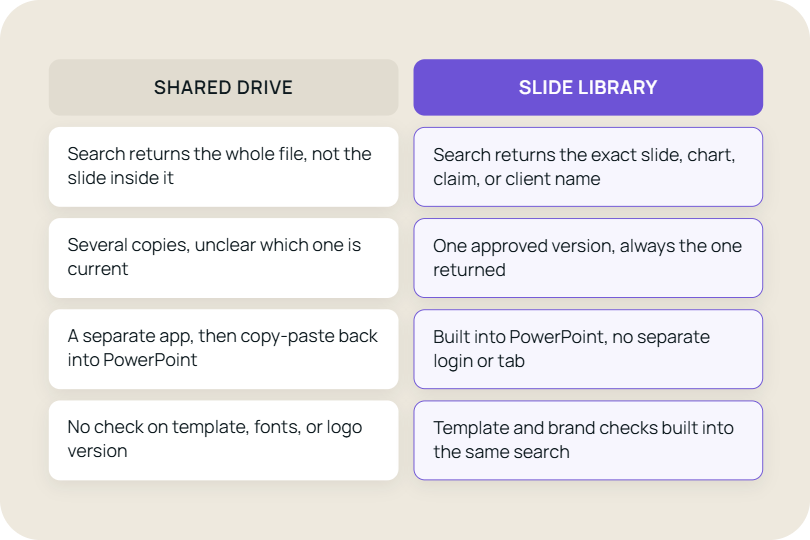
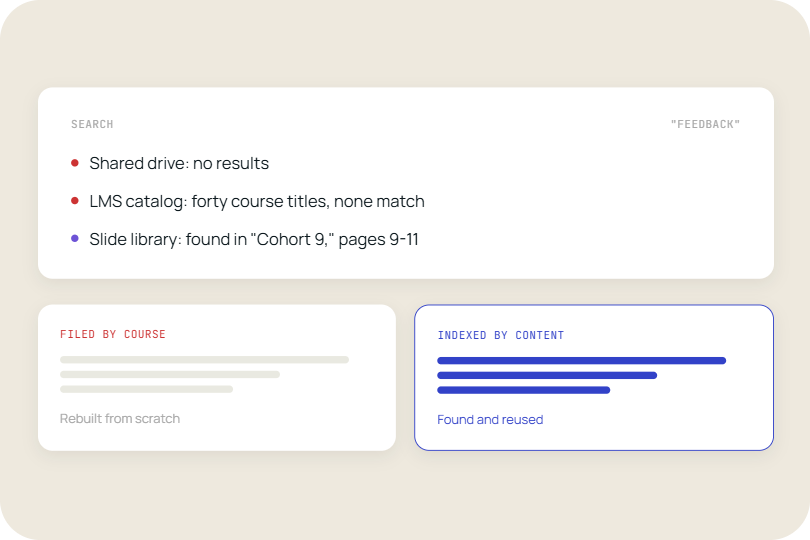
TeamSlide searches the actual text inside slides, tables, and speaker notes, not just the file name of the deck those slides sit in (Software Advice, AnyGen). That distinction matters more than it sounds. A speaker note from eighteen months ago might contain the exact client objection someone is trying to recall, and a shared drive has no way to surface that unless the searcher happens to open the right file.
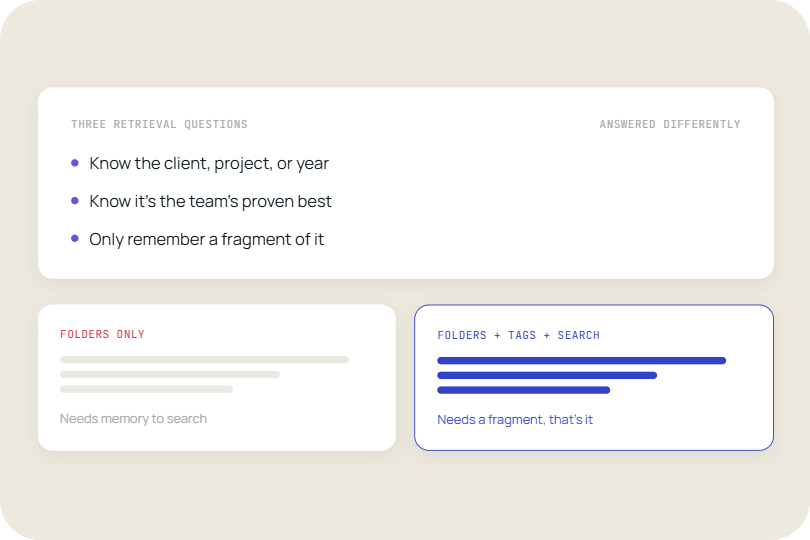
Results can also be filtered using custom metadata, tags, and file attributes, so a search can be narrowed to a specific client, industry, or quarter before scanning a single slide. Wildcard characters and exact phrase matching handle the rest, letting someone search for a partial term or a precise phrase rather than guessing at the exact wording used two years ago (YouTube product walkthrough).
Compare that to a shared drive search, which returns whole files based on the file name and whatever metadata the operating system happens to store. Finding one slide still means opening several decks and reading through each one. Slide-level search removes that step entirely.
2. Getting an alert before an outdated slide goes out, not after
A slide can be technically found and still be wrong.
TeamSlide flags a slide once it is sitting in a deck if a newer version has since been published in the library, rather than leaving that discovery to whoever happens to notice a stale number in a client meeting. Because inserting a slide directly from the library always pulls the current version, the risk sits with slides that were added earlier and have quietly gone out of date since.
From there, replacing the outdated slide with the current library version takes one click rather than a manual hunt through folders to confirm which copy is correct. Full version history stays attached to each slide, so a team can view, track, and restore prior versions when a change needs to be reverted, a capability confirmed in Software Advice's product profile.
This is a meaningfully different model from a shared folder, where the most recently saved file and the most recently approved file are often two different things, and nothing in the folder itself tells you which is which.
3. Keeping every deck on-brand without adding a manual review step
Brand consistency usually breaks down at the template level, before anyone gets to review the finished deck.
TeamSlide centralizes approved company templates so that whoever starts a new slide is working from the correct brand colors, logos, and layouts by default, rather than whatever template happens to be sitting on their laptop (Software Advice, Microsoft AppSource listing). TeamSlide helps reduce duplicate content by encouraging centralized reuse of approved slides, so the library does not slowly fill with six near-identical copies of the same market overview slide.
Existing decks can also be checked directly against brand and formatting rules, surfacing misaligned fonts, off-palette colors, or outdated logos in files that were built before the template rules were enforced. This closes the gap that a one-time brand audit leaves open, since a manual audit only catches what existed on the day it ran.
For a marketing ops team managing decks across multiple regional offices, this is the difference between finding a brand violation during a quarterly review and never finding it because the deck already went to the client three months earlier.
4. Connecting to what you already use, without adding a new login
Search, version control, and brand governance only matter if the right people, and only the right people, can reach them.
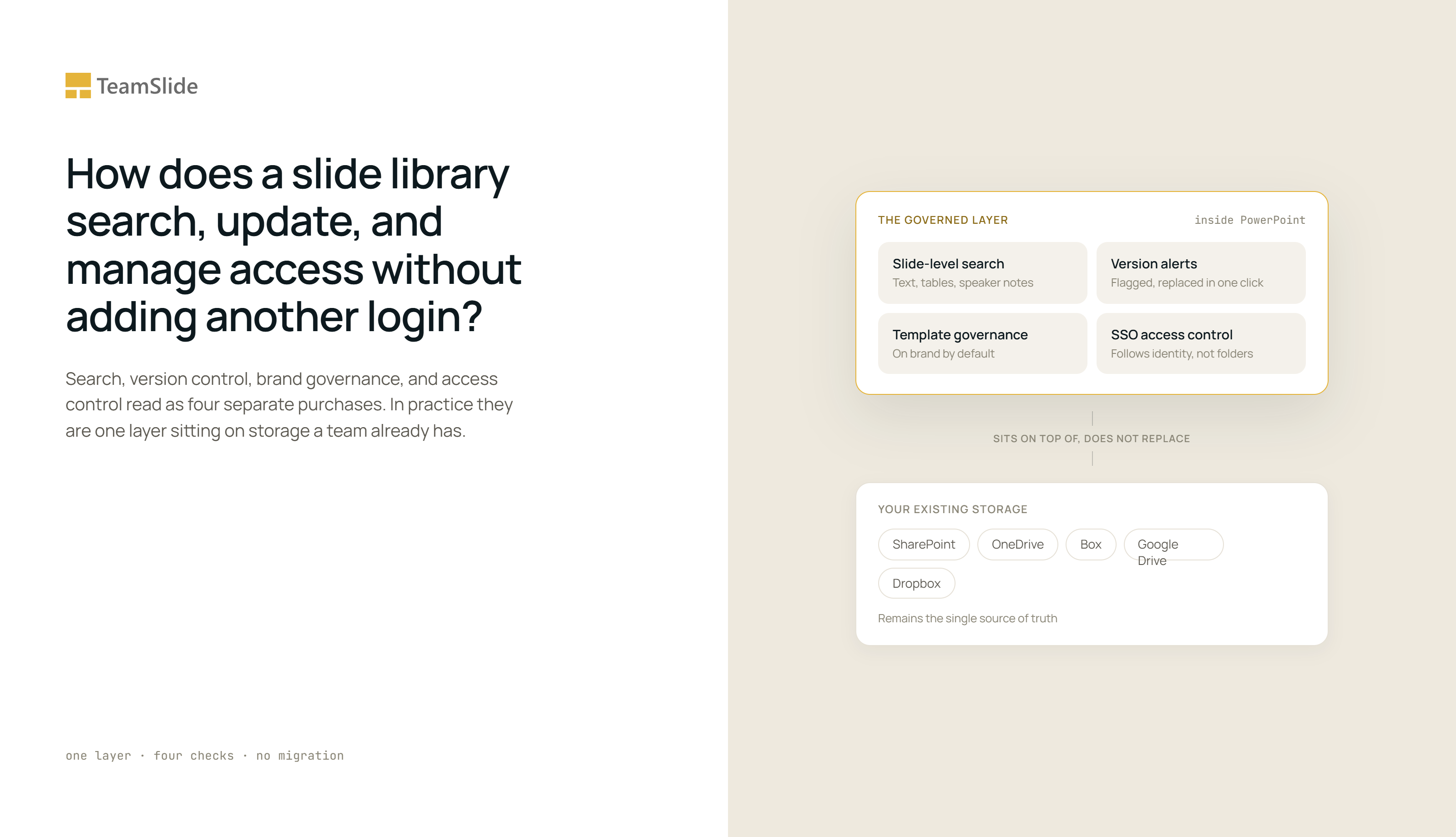
TeamSlide connects directly to an organization's existing content management system, whether that is SharePoint, OneDrive, Box, Google Drive, or Dropbox, without requiring files to be migrated into a separate platform first. Authentication runs through the organization's own Single Sign-On provider, so access follows the same login employees already use for every other internal tool rather than creating a separate password to manage and eventually forget to revoke.
Custom access rights sit on top of that connection, so a sales team sees only the slides relevant to sales, and a regional office does not automatically inherit visibility into another region's client decks or pricing. This is where the contractor scenario from the opening gets resolved before it becomes a problem: access is tied to identity and role through your existing SSO, so permissions stay consistent with whatever your identity provider has configured, rather than depending on someone remembering to update a folder's sharing settings by hand.
The structural shift
Search, version control, brand governance, and access control read as four separate features because they are usually bought, and audited, as four separate tools. In practice, they describe one underlying requirement: slide content needs to be correct, current, and visible only to the right people, automatically, without a person checking each condition by hand every time a deck goes out. A shared drive can approximate one or two of these at a time. It cannot hold all four at once without a person doing the enforcement manually, and manual enforcement is the first thing that breaks under volume.
When the gap is worth closing
A few signs tend to surface once slide content has outgrown a shared drive's ability to manage it:
- The same slide gets flagged as outdated in one deck but goes unnoticed in three others built the same week.
- A brand or formatting error is only caught after a deck has already reached a client.
- Two teams in different regions cannot tell which one is looking at the approved version of a shared template.
- IT cannot say, without checking manually, which teams have access to which slide content.
None of these individually triggers a review. Together, they describe a system where correctness and access depend on memory rather than on anything enforced automatically, and that gap tends to surface at the worst possible moment, in front of a client or a board.
Conclusion
The four capabilities here, search, version control, brand governance, and access control, are not separate purchases stacked on top of each other. They are one operational layer sitting on top of storage a team already has, doing the checking that used to depend on someone remembering to do it. For an operations lead, that means fewer manual audits. For IT, it means access follows identity rather than a folder's forgotten sharing settings. For anyone building a client deck, it means the slide that gets inserted is already the right one.
TeamSlide is built to support this transition. It sits directly inside PowerPoint, giving teams a searchable, slide-level layer that makes existing content easy to find, reuse, and manage without changing how they work. If your content already lives in SharePoint, OneDrive, or another system you rely on, there is no need to move it. TeamSlide connects directly, so your existing library becomes instantly searchable from day one.
Schedule a demo
FAQ
Can TeamSlide search inside speaker notes, not just slide text?
Yes. TeamSlide indexes text inside slides, tables, and speaker notes, so a search can surface a slide based on a note a presenter left rather than only the visible text on the slide itself. This is useful for recalling context that was never put on the slide directly, such as how an objection was handled in a past client conversation. Combined with metadata filters and wildcard matching, this makes search functional even when the searcher only remembers a fragment of what they are looking for.
How does version control know a slide is out of date?
TeamSlide compares slides already sitting in a deck against the current version stored in the library and flags any that have gone out of date since insertion. Because inserting directly from the library always pulls the current version, the alert catches slides that were added earlier and have since been superseded, giving the person building the deck a chance to replace it in one click.
Does brand and template management require a manual brand audit?
No. TeamSlide centralizes approved templates so new slides start from the correct brand colors and logos by default, and helps identify formatting inconsistencies and enables organizations to maintain approved templates and branding. This removes the need for a periodic manual audit, since checking happens continuously rather than on a fixed schedule. TeamSlide helps reduce duplicate content by encouraging centralized reuse of approved slides.
Can we use our own single sign-on provider with TeamSlide?
Yes. TeamSlide authenticates through your organization's existing SSO provider, so employees use the same login they already rely on for other internal tools rather than a separate TeamSlide-specific password. This also means access can be revoked or adjusted centrally through your existing identity system when someone's role changes or their employment ends. See [LINK: TeamSlide Integrations and Access] for supported identity providers.
Do we need to migrate our files to use TeamSlide?
No. TeamSlide connects directly to SharePoint, OneDrive, Box, Google Drive, or Dropbox without requiring content to be moved into a separate system. The existing storage location remains the source of truth, and TeamSlide adds a searchable, governed layer on top of it.
Can different teams have different levels of access inside the same slide library?
Yes. Custom access rights can be set so that a sales team only sees slides relevant to sales, and a regional office does not automatically see another region's client-facing content or pricing. This is managed centrally rather than depending on individual folder-sharing settings, which reduces the chance of a former employee or contractor retaining access after their role ends.



More from our blog
Discover insights and strategies for better presentations