In this walk-through, you’ll learn how to create a Search board (previously called Regular Board) in the TeamSlide Web Portal. Before setting up a board, make sure to read through our resource article about Boards.
What are search boards?
Search boards (regular) use a search-focused interface best suited for slides with usable content. Users can search, filter, and even browse for content. As with all boards, you can define which libraries are connected to this board.
For example, when running a search in the “Sales assets” board below, users will only see results from connected libraries. In this case, a user would only see search results originating in the “Sales” library
How to create a search board
1. Log into the TeamSlide Web Portal. Click the Boards tab on the Main Menu panel.
2. Select the Add new board tab at the top.
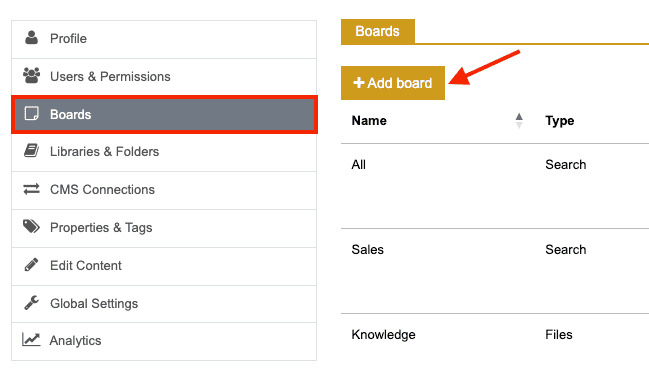
3. Name your new board. Users typically want to choose a name that categorizes the content that users will be searching. For example, ‘Sales assets’ or ‘Knowledge base’.
4. Select the type Search in the dropdown menu.
5. The display position can be adjusted to re-order the Board names. Adjust this number if you’d like your Board tabs to appear in a particular order.
We usually like to count in 10's to give margin for other boards. For example, we may set the display position for a board we want in the middle to 10, while a board we want to display at the end would be 20.
6. Determine if you want the slides to be displayed when the board is opened. If so, check the box.
7. Select 1 or more libraries to include in the Board search.
Pro tip: Create an “All” board by naming the board “All” and selecting the “All libraries” checkbox to allow users to search all content.
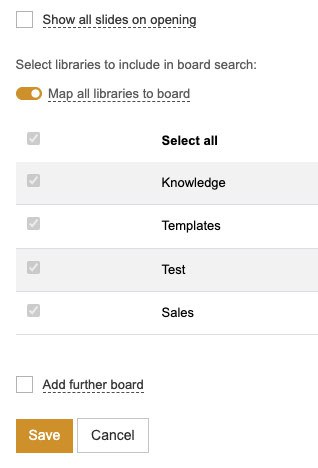
8. Click Save.
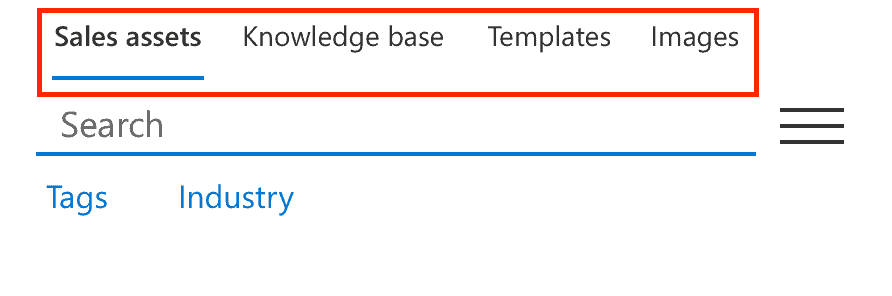
9. Open PowerPoint and the TeamSlide pane. You’ll see your new Boards at the top of the pane and can toggle through each one.
How to set up other boards:



More from our blog
Discover insights and strategies for better presentations