Once you've established a replication task, making specific folders searchable in TeamSlide, you may find that the folder path has changed. Let's walk through how to edit the folder path so that TeamSlide can reconnect to your content.
- Log into your
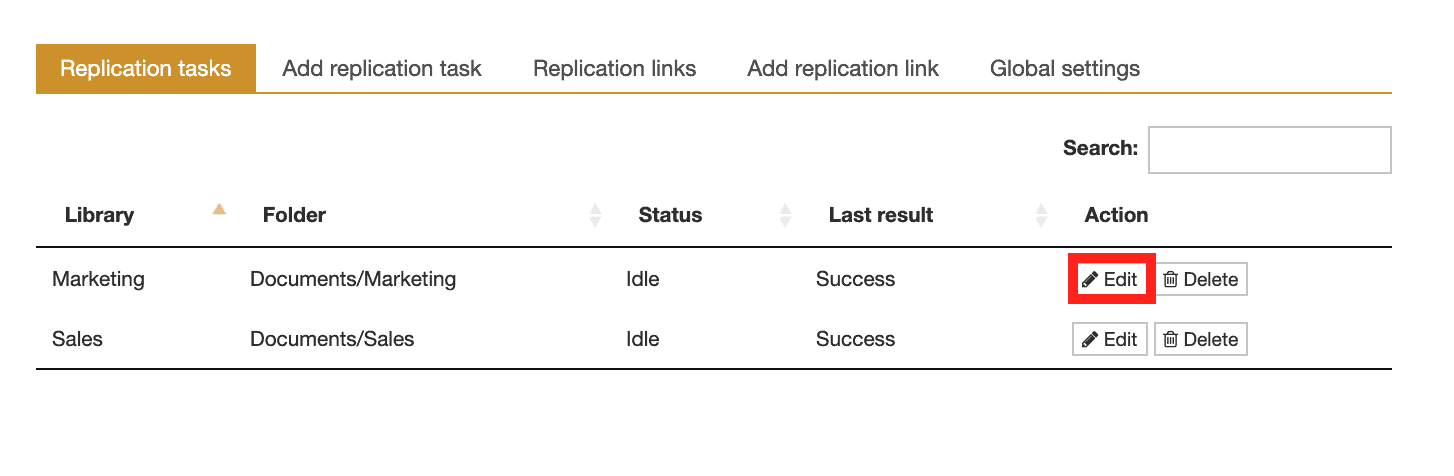
- Select Replication tasks from the top menu.
- Choose the task you'd like to change and select Edit.
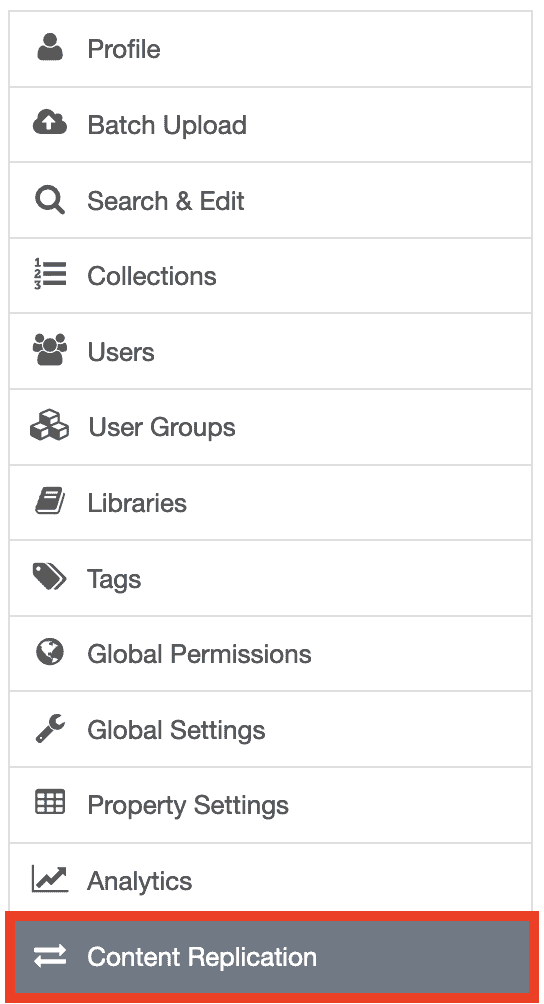
- Under Replication folder, type in the new path to the folder you would like to index. Use a forward slash (/) to denote the full path (e.g. Documents/My Folder).
- Click Save.
On the next scheduled replication run, TeamSlide will use the new folder you've connected. If the process runs into any errors, the user account associated with the link will receive an email with the details. If you'd like to monitor the replication process, please access the log data from the Replication link page.
If you have trouble establishing the replication task, please contact support@teamsli.de.



More from our blog
Discover insights and strategies for better presentations