There are two ways to tag or add metadata to your content in TeamSlide: In the TeamSlide Web Portal or in the TeamSlide PowerPoint add-in.
TeamSlide Web Portal
The TeamSlide Web Portal is an effective way to add metadata to many slides quickly.
- Log into your
- Use the exact or simple search to search for the slides you want to add metadata to.
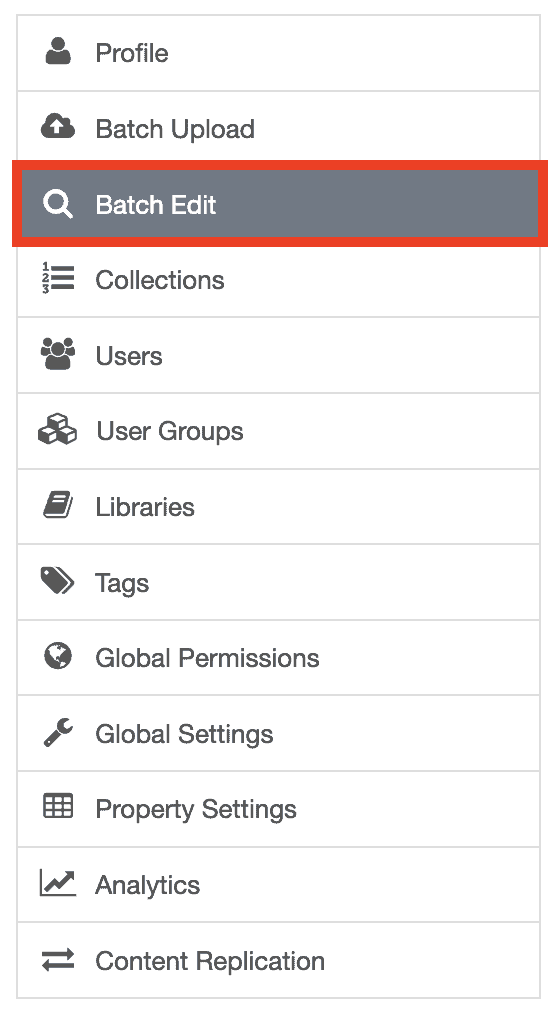

- If you want to add tags, in the Batch modification section, select Add tags. Type in the tags you would like to apply.

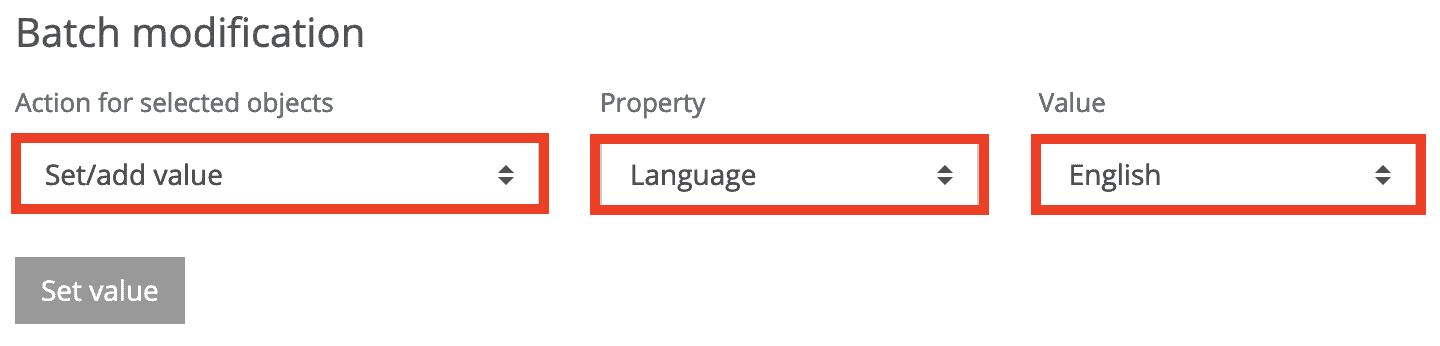
- If you want to add a value to a custom property, in the Batch modification section, select Set/add value. Choose the property and type in the value.
- Next, click the slides you want to apply the metadata to.
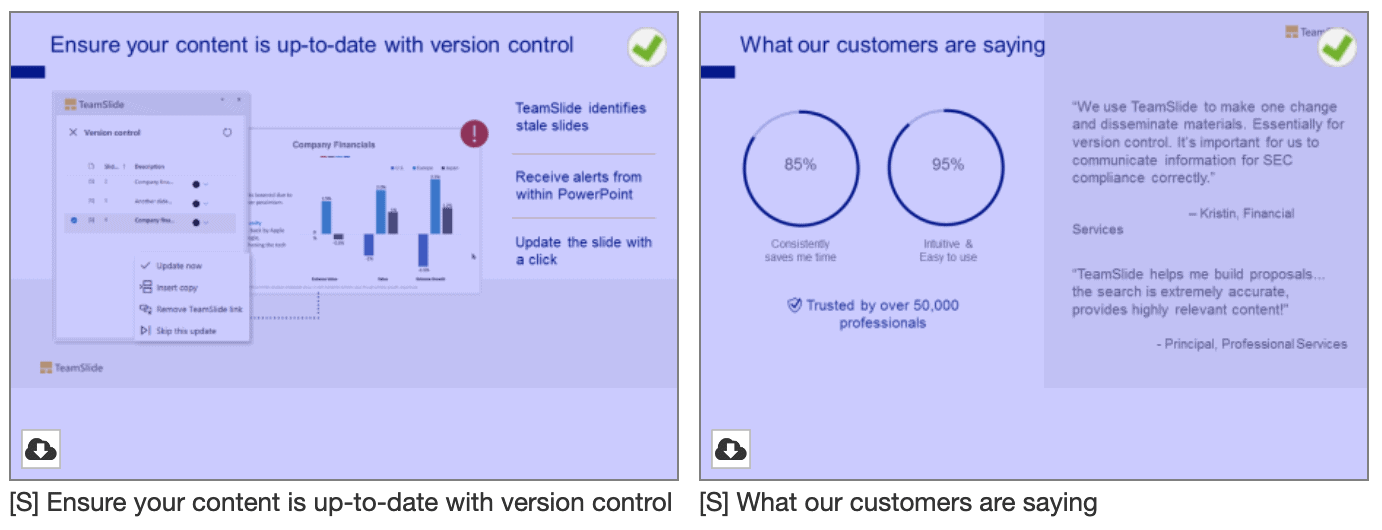
- Back in the top section, click Add tags (for tags) or Set value (for custom properties).
- Repeat for other metadata values.
TeamSlide PowerPoint add-in
You can also add and edit tags and metadata in PowerPoint. It's especially effective if you are working on a handful of slides and want to update metadata as you build content.
- Put your mouse over the preview of the slide you are interested in.
- Select the information icon from the Hover menu to open the Information view.
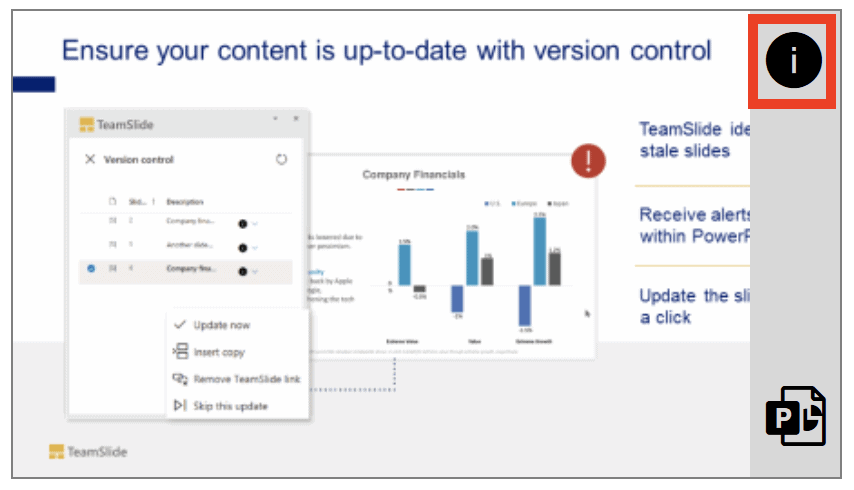
- From the Information view, click the details icon to open the Details view.

- In the Details view, click the edit icon in the top-right corner.

- Add or edit tags and custom properties in the appropriate fields.
- Below the fields, click Save.




More from our blog
Discover insights and strategies for better presentations