


How to use metadata in SharePoint
Effective content organization is critical for teams using SharePoint, and metadata can be the game-changing tool you didn’t know you needed. Metadata simplifies how your team finds, organizes, and uses documents by providing essential information about each file.
Whether you’re managing sales presentations, project reports, or internal documents, leveraging metadata ensures your SharePoint content remains accessible and scalable as your business grows.
In this article, we’ll teach you about metadata, explain why it’s a must-have for your SharePoint setup, and share practical examples tailored to different professions. Plus, we’ll walk you through step-by-step instructions to configure metadata in SharePoint effectively—so you can start improving searchability, consistency, and team productivity right away.
Why you should use metadata in SharePoint
Metadata is an underused and often misunderstood asset that can help keep content organized. Various content management systems (CMS) allow users to add different types of metadata to their content.
What is metadata?
Metadata is defined as “data that provides information about other data”… Metadata “summarizes basic information about data, making finding and working with particular instances of data easier” (1)
SharePoint has a number of standard metadata options: author, file name, creation date, content type, and file type. Users can also create custom metadata. SharePoint users are able to add metadata in the form of columns, descriptions, and tags to their content. Taxonomies create a vocabulary for when you implement metadata.
What is a taxonomy?
A taxonomy is a hierarchical classification of terms that are categorized and applied to the content. They form a structure for metadata that consistently classifies documents.
“A taxonomy helps you to organize your content and assets into hierarchical relationships. Classifying content and assets in a taxonomy can make it far easier to search for or browse a Digital Asset Management or Web Content Management System when you aren’t sure exactly what you are looking for.”2
Taxonomies enforce naming standards and categories to add consistency across the platform and support enterprise content management. They enable end-users to locate and discover information quickly, helping solve business problems.
Utilizing metadata and taxonomies in your content management system can be beneficial in improving document search relevancy, maintaining uniformity, and effectively scaling with your business.
Metadata examples based on profession
Metadata is completely customizable depending on your role and industry. Here are some examples:
Marketing & Sales roles
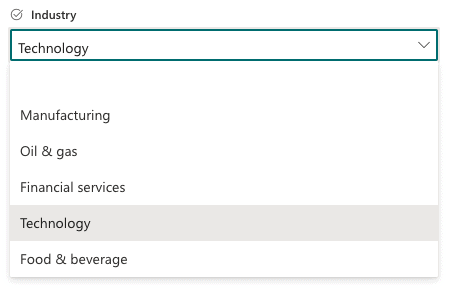
Your sales folder in SharePoint may contain standard pitch presentations. You may define a taxonomy that describes the ‘industry’ the pitch is focused towards and the ‘product’ it represents. Within ‘industry’, the taxonomy might limit the available options to ‘finance’, ‘healthcare’ and ‘manufacturing’.
Professional services roles
A consulting organization may have a folder that contains partner biographies. Creating a column in SharePoint that describes the ‘Permitted use’ of the biographies may be helpful. Within ‘Permitted use’, the available options might be “internal” or “client shareable”.
Metadata best practices
If you aren’t currently using metadata in SharePoint, you may feel a bit overwhelmed not knowing where to start. We’ve got you covered.
Take time to plan before making changes
Think through your metadata strategy with your team before laying it out in your slide library. A ‘strategy before software’ approach will save you frustration later on.
As you’re planning, consider your content in terms of: What, when, where, who, how, which, why. Thinking about your content in these ways can help you consider the best metadata to use in the brainstorming process.
Consider your most valuable information
Imagine trying to filter or browse by metadata to find your content. What would be the most essential information to you? Browsing by industry, business-specific tags, or customer can accelerate your ability to find the content you’re looking for within your SharePoint slide library.
Custom metadata examples:
- Department – i.e. Sales, Marketing, Training, HR
- Location – i.e. Europe, North America, Asia
- Quality – i.e. Shareable or Internal
- Customer – i.e. Cisco, Oracle, IBM
Standard metadata examples:
- File name
- Author
- Creation date
- File type
- Content type
- Folder
Use consistent terminology
A taxonomy allows SharePoint admins to build consistent metadata that is shared across multiple sites and extended to other applications. Further, terms defined in a SharePoint taxonomy can include synonyms and multilingual variants.
This allows all users to apply a consistent classification to documents using a defined set of terms. Further, using terms that are likely to be used when searching is beneficial.
How to use metadata in SharePoint
In SharePoint, you have the option to create a site level or a list/library level column. List/library level columns are most commonly used, however, you should be aware that any metadata you create at this level stays local to the list/library that it is created in.
Site columns are shared on all lists/libraries throughout your entire site, allowing you to define metadata once and then reuse it where you’d like to.
What is a list?
“A list is a collection of data that you can share with your team members and people who you’ve provided access to.”5 SharePoint has many ready-to-use templates or you can create a custom list. Some examples of lists include contact lists and to-do lists.
Let’s dive into the details below.
Note: your screen might look slightly different depending on which version of SharePoint you are using (Modern or Classic). We wrote these instructions based on the Modern view.
Creating a site column in SharePoint
What is a site column?
“A site column is a reusable column definition, or template, that you can assign to multiple lists across multiple SharePoint sites. Site columns decrease re-work and help you ensure consistency of metadata across sites and lists. For example, suppose you define a site column named Customer. Users can add that column to their lists, and reference it in their content types. This ensures that the column has the same attributes, at least to start with, wherever it appears.”3
Let’s dive in…
1. In SharePoint Online, navigate to the home page of the site you want to use.
Keep in mind, site columns are hierarchically re-usable, meaning that if a site column is created at the top-level site, the column will be available on all subsites. But if the site column is created in a subsite, the column will only be available to the subsite’s child.
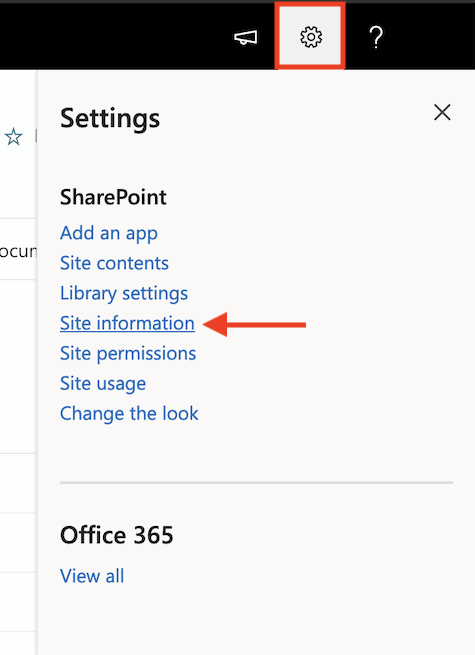
2. Select the settings button on the top menu bar on the right. Select ‘Site settings’.
Note: If you don’t see ‘Site settings’, select ‘Site information’ and then select ‘View all site settings’.
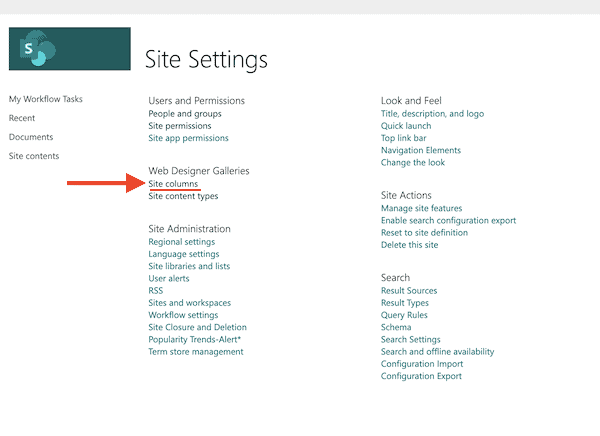
3. In the ‘Site settings’ page, click ‘Site columns’.
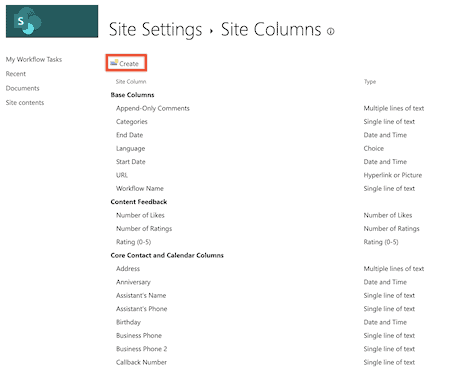
4. In the ‘Site columns’ page, click ‘Create’ at the top.
5. Enter the column name that you desire.
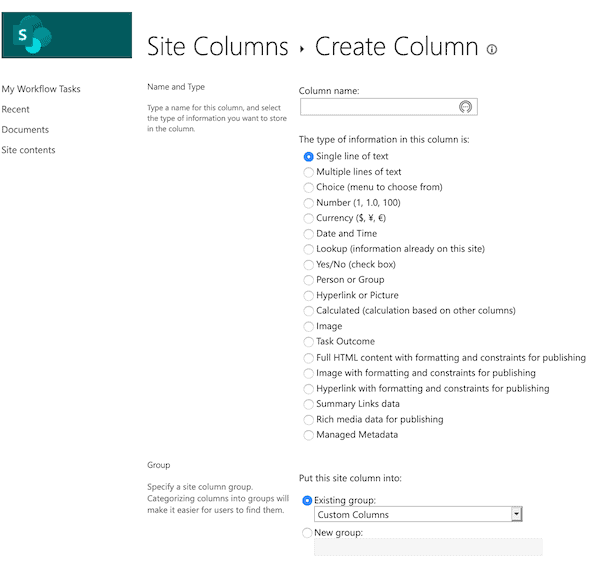
6. Select the type of information you want to store in the column. To learn more about the type of information you can store, click here.
7. In the next section, Group, select the existing group in which you want to store the new site column. Alternatively, you can also choose to create a new group.
8. In the next section, Additional column settings, you can further customize the column. The options in this section will vary based on the type of information you selected earlier.
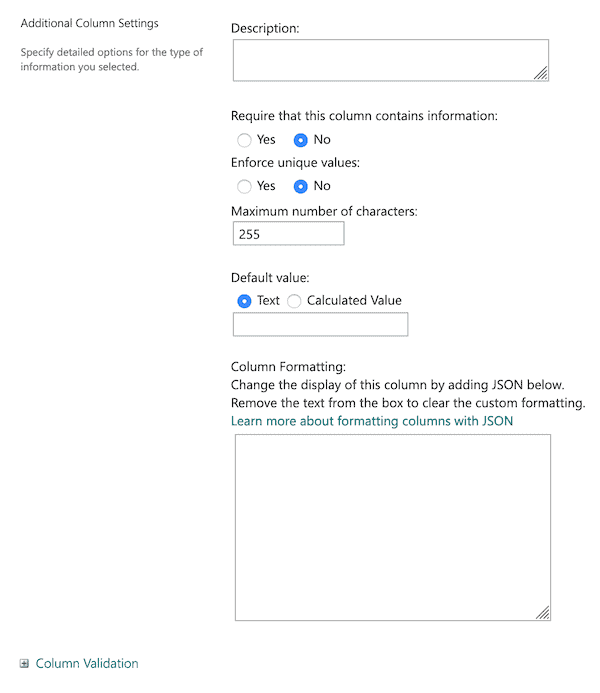
9. On the bottom right, Select ‘Ok’
Now that the column has been created, we need to assign it to a list/library…
Assigning a column to a list/library
Now that the column has been created, we need to assign it to a list/library:
1. Navigate to the list/library you want the column applied to
Note: If the name of your list/library does not appear on a page, navigate to settings > Site contents, and select the name of your list/library.
2. Under Settings, click ‘List settings’ or ‘Library settings’.
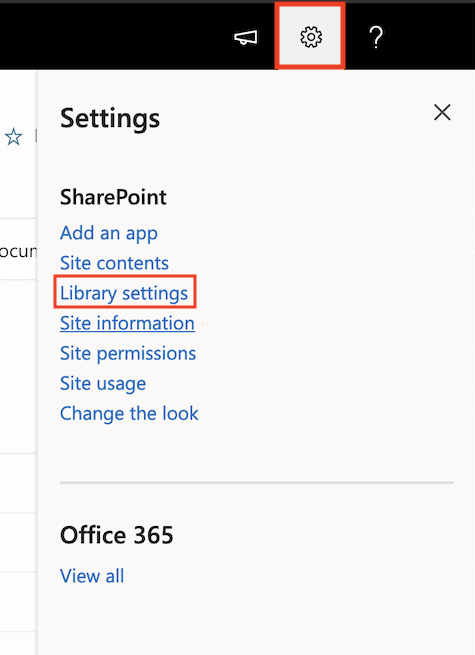
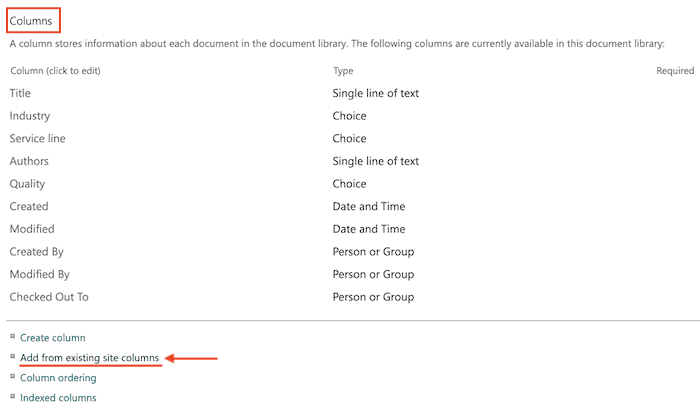
3. Scroll down to the ‘Columns’ section.Select ‘Add from existing site columns’.
4. On the page, in the ‘Select columns’ section, select the group of site columns to choose from in the dropdown menu.
Click the site columns you want to add and select ‘Add’. This will move the column you’re adding to the ‘Columns to add’ list box.
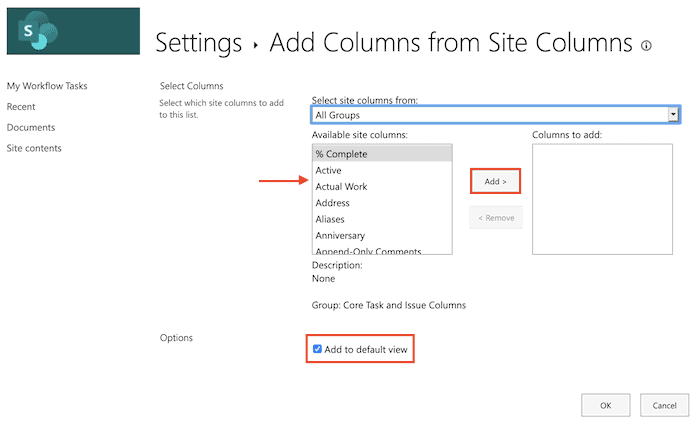
5. Select the checkbox ‘Add to default view’. This will allow people on your site to automatically see the column when they first open a list or library.
Note: depending on the type of list or library, there may be additional settings available in the ‘Options’ section.
6. Click ‘Ok’ to save.
Creating a list or library column in SharePoint
How does a list/library column differ?
“List columns are created at the list/library level and won’t be available outside that list/library. So you’ll have to manage them separately.”4
See a step-by-step tutorial below…
1. Navigate to the list or library you want to create the column in.
2. On the far right, next to the last column name, select ‘ + Add column‘
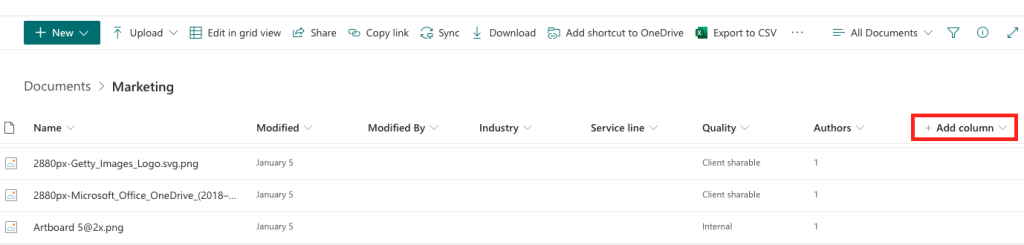
3. Within the dropdown, select the type of column you want to create.
. Enter a title or column heading under ‘Name’ along with any other required information.
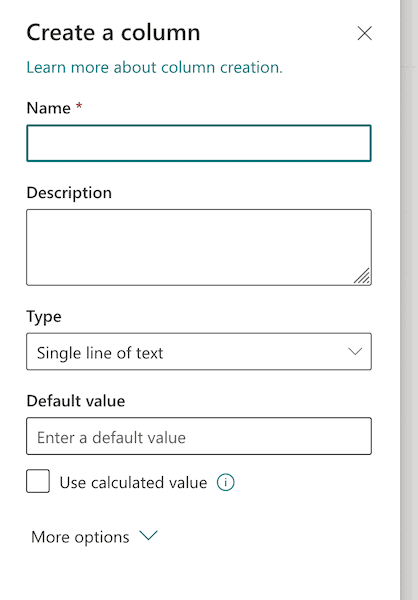
5. Click ‘Save’
View a file's metadata
1. Navigate to the file you’d like to view information on.
2. There are a few ways to view the metadata of a file. Click the checkmark to the left of the file and a pane on the right side will display the file metadata.
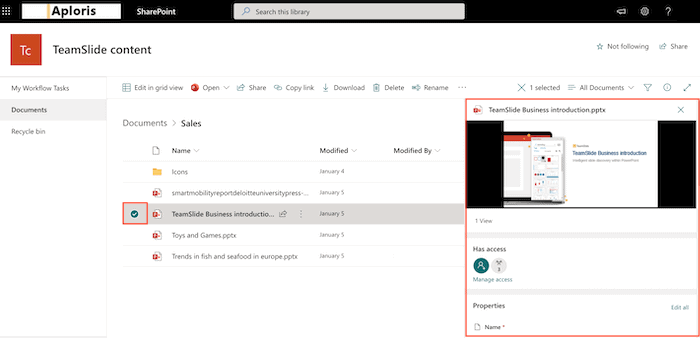
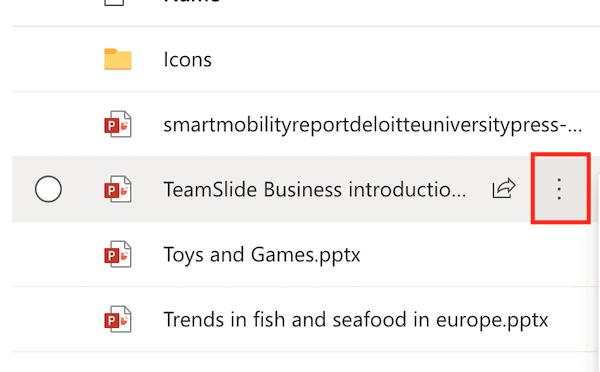
Alternatively, hover your mouse over the file name. Click the 3 dots that appear to the right of the file name.
Click ‘View details’ and the pane will open on the right side.
If desired, the metadata field selections can also be modified within the pane by clicking on a field selection.
As content repositories grow, the challenge of keeping documents classified and easy to find becomes increasingly difficult. Without a structured approach, searching through SharePoint—or any content management system—can result in wasted time, frustration, and even unnecessary extra work.
By implementing metadata and taxonomies in SharePoint, teams can bring order to their document libraries, ensuring content is easy to search, filter, and retrieve. This not only boosts productivity but also empowers users to focus on meaningful work rather than hunting for files. Take the time to configure metadata thoughtfully, and you’ll transform SharePoint into a powerful tool that scales with your team’s needs.
Sources
- Opendatasoft- https://www.opendatasoft.com/blog/2016/08/25/what-is-metadata-and-why-is-it-important-data
- DPCI- https://www.dpci.com/insights/taxonomy-vs-metadata
- Microsoft- https://docs.microsoft.com/en-us/previous-versions/office/developer/sharepoint-2010/ms450825(v%3Doffice.14)
- Veronica Geek- https://veronicageek.com/sharepoint/sharepoint-2013/list-columns-or-site-columns-in-sharepoint/2018/04/
- Microsoft- https://support.microsoft.com/en-us/office/introduction-to-lists-0a1c3ace-def0-44af-b225-cfa8d92c52d7