


Connecting to SharePoint: Entra ID App method
In order to make your SharePoint content searchable, you’ll need to complete two steps in the replication process – establish a CMS connection and connect a library. In this article, we will walk you through how to connect TeamSlide to SharePoint.
What is a CMS connection used for?
A CMS connection creates a link between a specific SharePoint site and TeamSlide, making your SharePoint content searchable.
In this article, we’ll walk through the Entra ID App method to connect to SharePoint:
1. Create a CMS connection in the TeamSlide Web Portal
If step 1 is unsuccessful, then proceed:
1a. Add an application in Microsoft Azure
Step 1: Add a CMS connection
Note that this process creates a connection to a specific site in SharePoint. If you’d like to connect with multiple sites or with other content systems (e.g. OneDrive, Box, Google Drive), you can create multiple connections.
1. Log into your TeamSlide Web Portal and select CMS Connections in the main menu.
2. Select Add CMS connection in the top menu.
3. Complete the following fields:
1. Display name: Provide a meaningful name. If you plan on connecting to multiple SharePoint sites, please list the site name here (e.g. SharePoint SiteName).
2. Repository type: Select SharePoint (Microsoft Entra ID app).
3. SharePoint site URL: Enter your SharePoint site URL (e.g. https://yourcompany.sharepoint.com/SiteName).
4. User account: Select the account that will own the slides. This user will be notified by email if there any errors or warnings associated with the replication link. Note that if you want to later delete this account, you’ll need to transfer ownership to another account.
5. Application ID: Leave blank
6. Application secret: Leave blank
7. Click Save.
8. Now click the … button next to Access token.
4. You’ll be taken to your SharePoint site where you’ll be asked to trust the application. Please click Trust It.
5. After a few seconds, the confirmation page will close (or you can close it manually).
6. You’ll notice an access token is now listed on the Add replication link page.

7. Scroll to the bottom of the page and click Save again.
If you receive a message saying that the link is unsuccessful, please move on to Step 1a if you’re an IT professional. Otherwise, please contact us for additional help.
Step 1a: App registration in Microsoft Azure
Note: Admin permissions are needed to complete these steps.
1. Go to Microsoft Azure and login if needed.
2. Under Azure services, select Microsoft Entra ID.
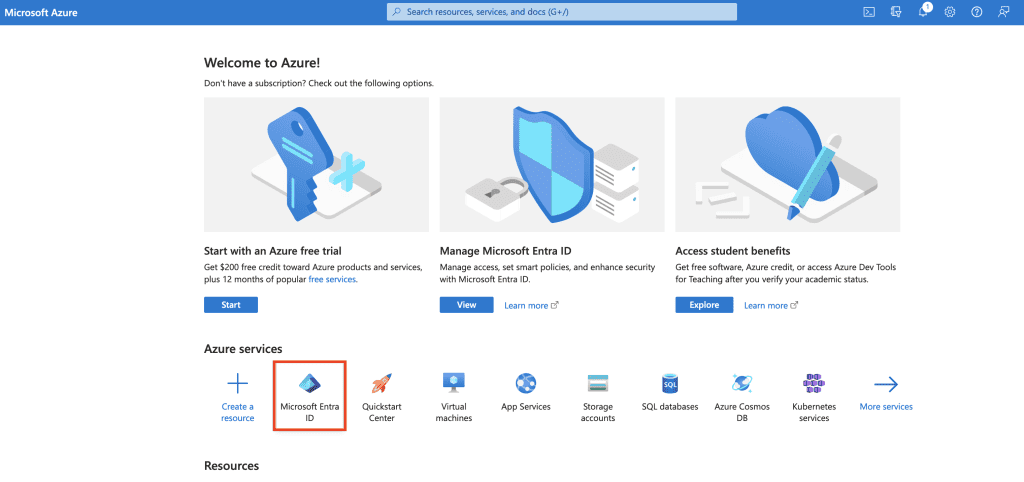
3. On the top menu, select Add > App registration

4. Fill in the following information:
Name: Choose any suitable display name
Supported Account types: Accounts in this organizational directory only
Redirect URI: Web; https://www.teamslide.io/Settings/ReplicationLinkAuthCallbackAD
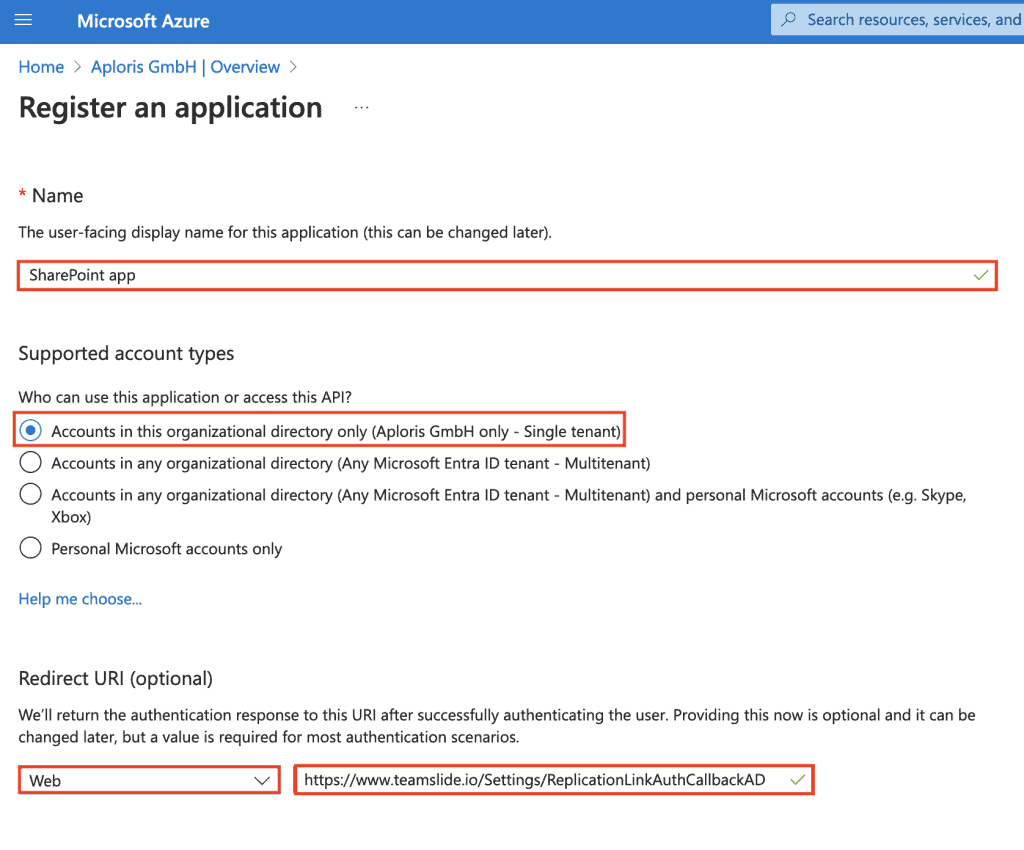
5. Save and you’ll be redirected to the app overview page. Notice the display name you indicated at the top.
6. Under Client credentials, click Add a certificate or secret.
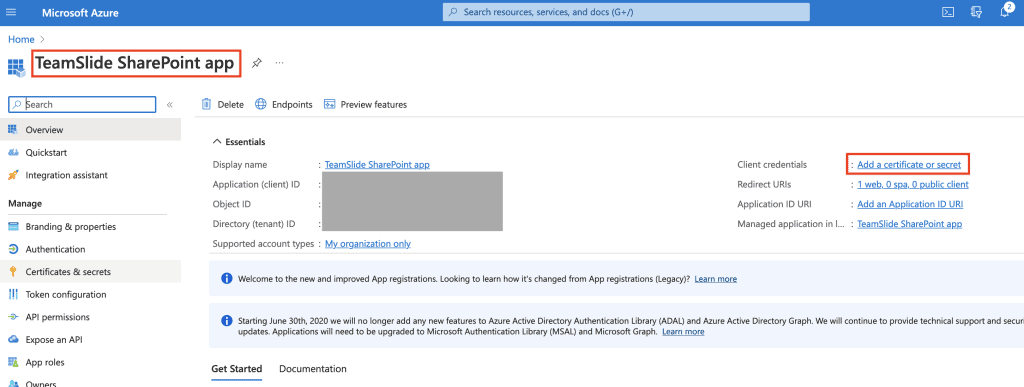
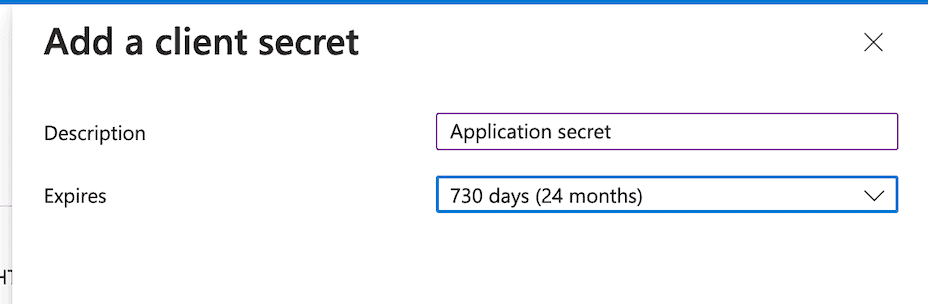
7. Click New client secret.
8. Under description, enter Application secret. Choose an expiration of 24 months.
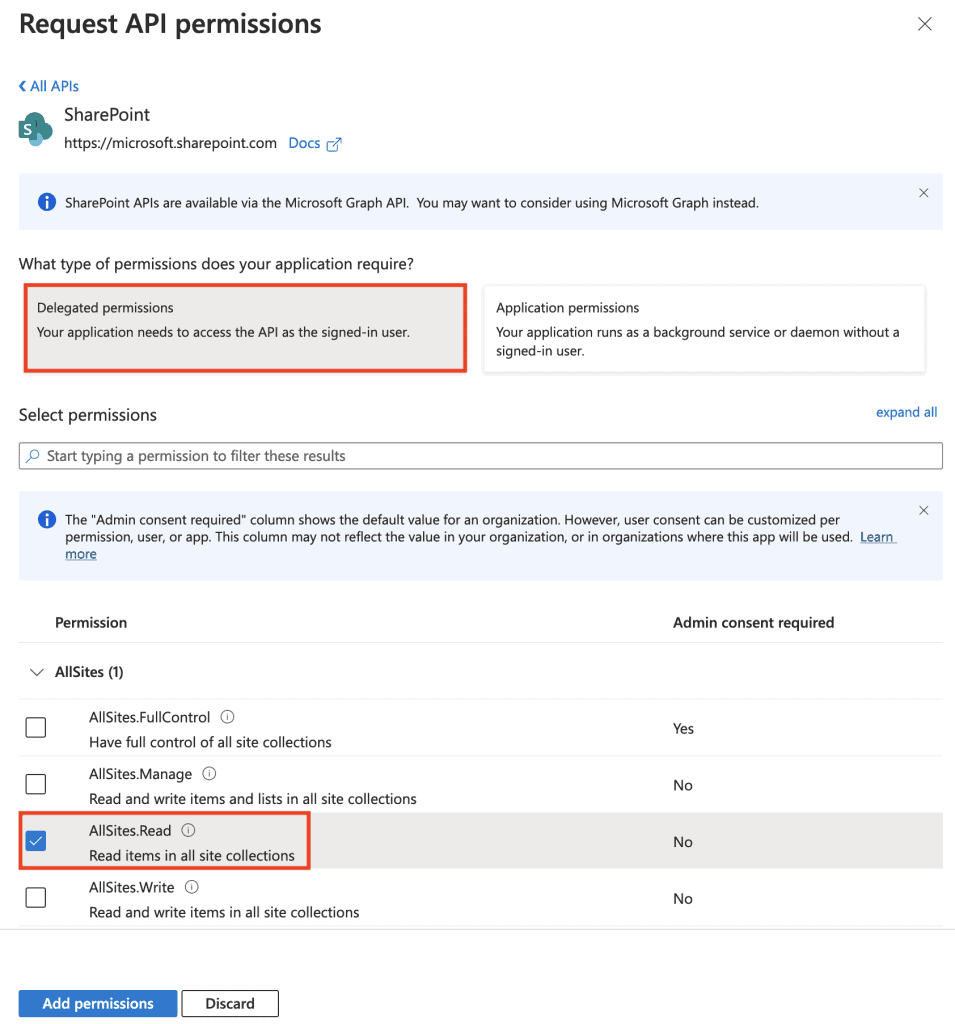
9. Navigate to API permissions in the main menu. Click Add a permission
10. Select SharePoint
11. Select Delegated permissions. Check AllSites.Read.
12. Click Add permissions.
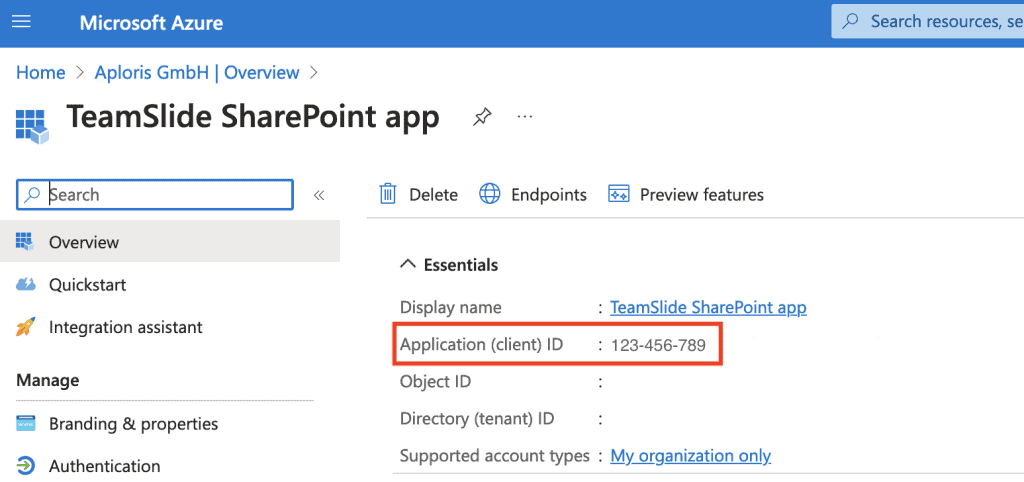
13. Navigate back to Overview. Copy the Application (client) ID. Save it to use in a future step.
14. Click Certificates & secrets in the menu. Copy the value.
15. Return to the TeamSlide Web Portal. On the same CMS connection window you used in Step 1, paste the Application ID and Application secret.
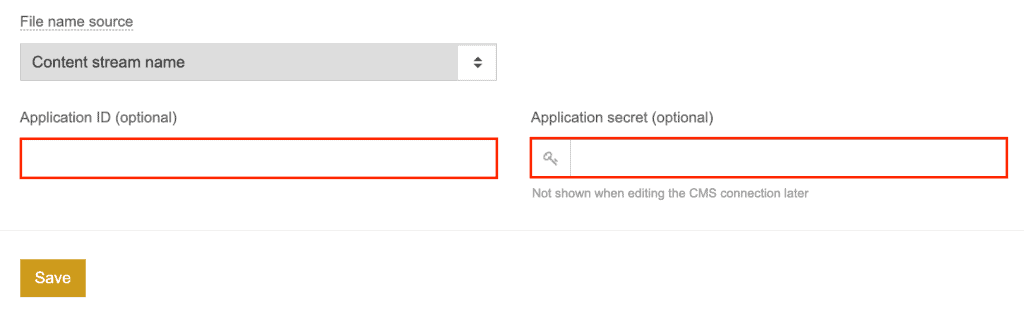
16. Save.
17. Click the … next to Access Token
18. Save.
19. You’ll be taken to your SharePoint site where you’ll be asked to trust the application. Please click Trust It.
20. After a few seconds, the confirmation page will close (or you can close it manually).
21. You’ll notice an access token is now listed on the Add CMS connection page.
22. Scroll to the bottom of the page and click Save again.
If you ran into any issues, please don’t hesitate to contact us at support@teamslide.com