


Adding metadata in TeamSlide
There are two ways to tag or add metadata to your content in TeamSlide: In the TeamSlide Web Portal or in the TeamSlide PowerPoint add-in.
TeamSlide Web Portal
The TeamSlide Web Portal is an effective way to add metadata to many slides quickly.
- Log into your TeamSlide Web Portal and select Batch Edit in the main menu. Note that on a Mac this section is called Search & Edit
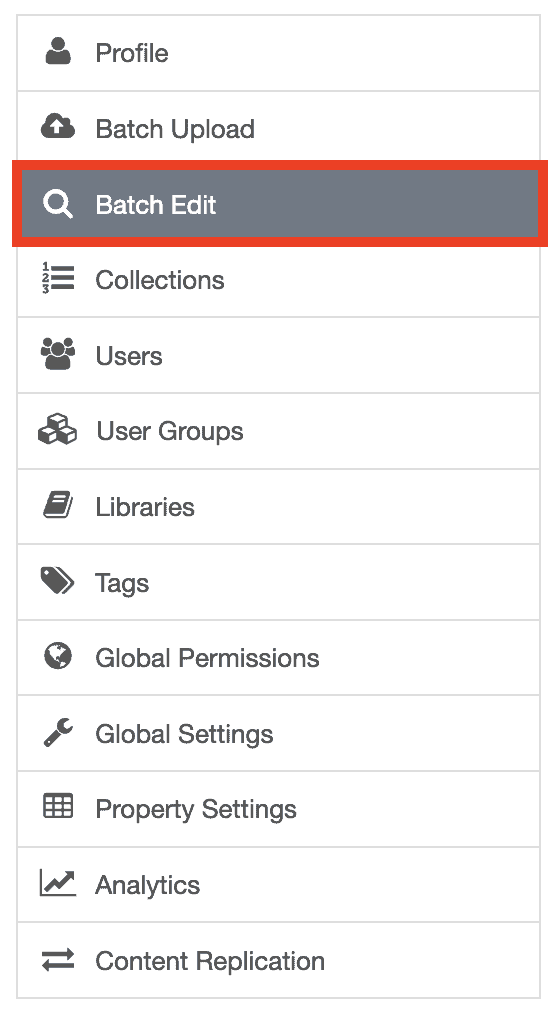
2. Use the exact or simple search to search for the slides you want to add metadata to.

3. If you want to add tags, in the Batch modification section, select Add tags. Type in the tags you would like to apply.

4. If you want to add a value to a custom property, in the Batch modification section, select Set/add value. Choose the property and type in the value.
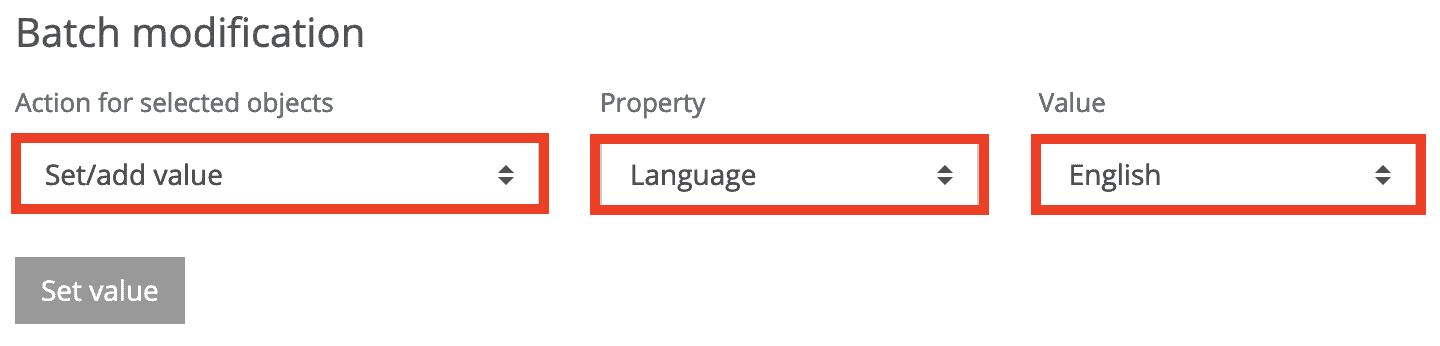
5. Next, click the slides you want to apply the metadata to.
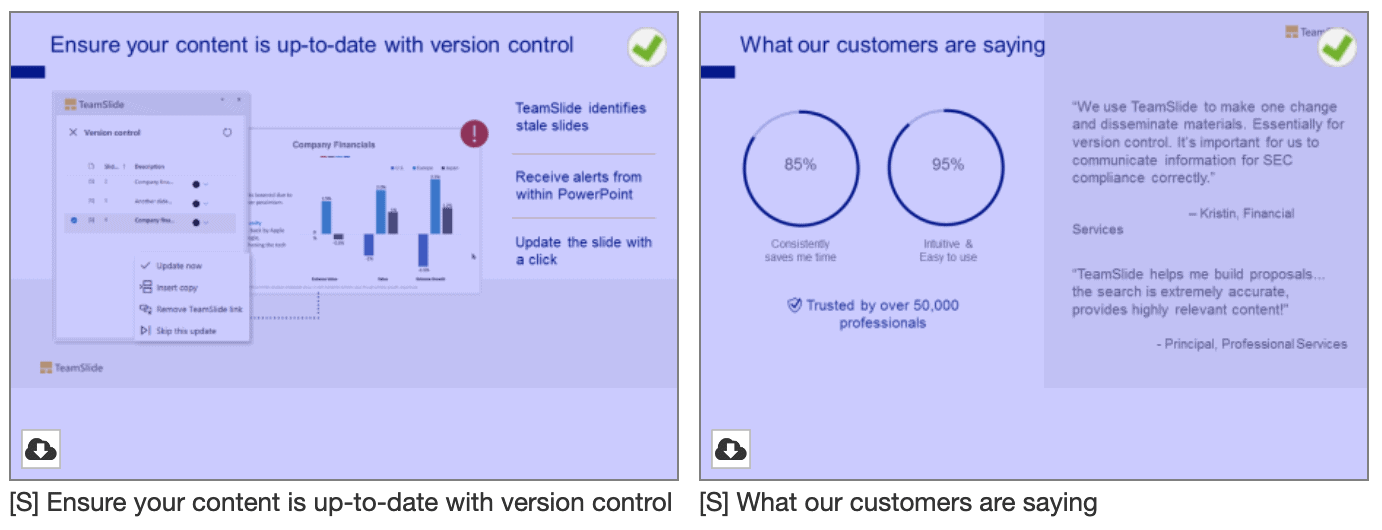
6. Back in the top section, click Add tags (for tags) or Set value (for custom properties).
7. Repeat for other metadata values.
TeamSlide PowerPoint add-in
You can also add and edit tags and metadata in PowerPoint. It's especially effective if you are working on a handful of slides and want to update metadata as you build content.
- Put your mouse over the preview of the slide you are interested in.
- Select the information icon from the Hover menu to open the Information view.
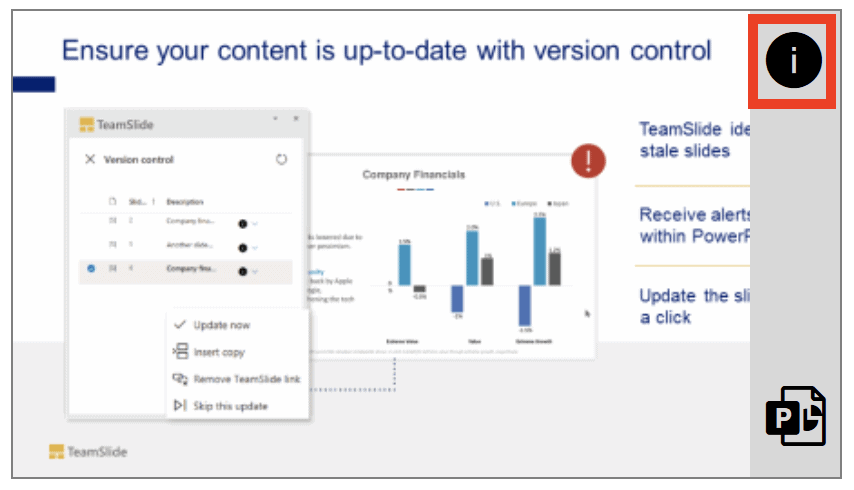
3. From the Information view, click the details icon to open the Details view.

4. In the Details view, click the edit icon in the top-right corner.

5. Add or edit tags and custom properties in the appropriate fields.
6. Below the fields, click Save.
