


Add CMS connections
The first of two steps in connecting TeamSlide to your content management system (e.g. Box, Dropbox, OneDrive, Google Drive) is to add a CMS connection. Note if you are using SharePoint, please follow these steps instead.
Adding CMS Connections
This process creates a connection to a specific account in a content management system. If you’d like to connect to multiple accounts or with additional content systems, you can create multiple links.
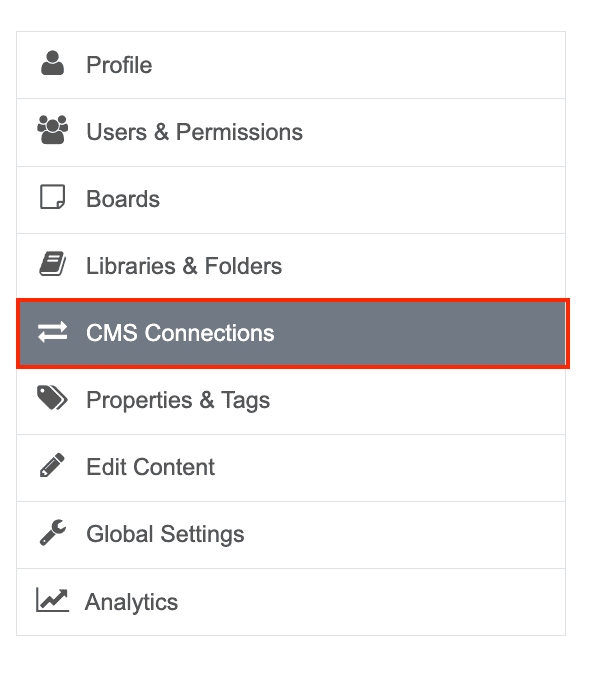
- Log into your TeamSlide Portal and select CMS Connections in the main menu.
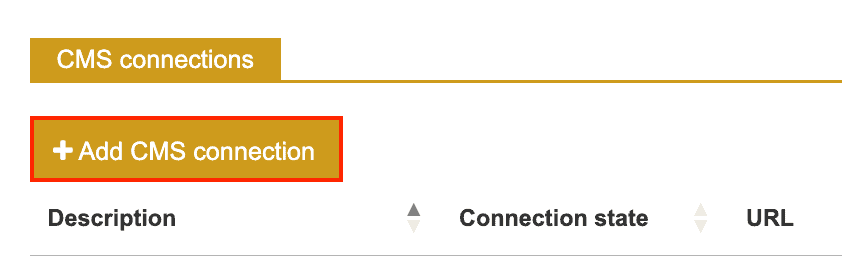
2. Select Add CMS connection from the top menu.
3. Complete the following fields:
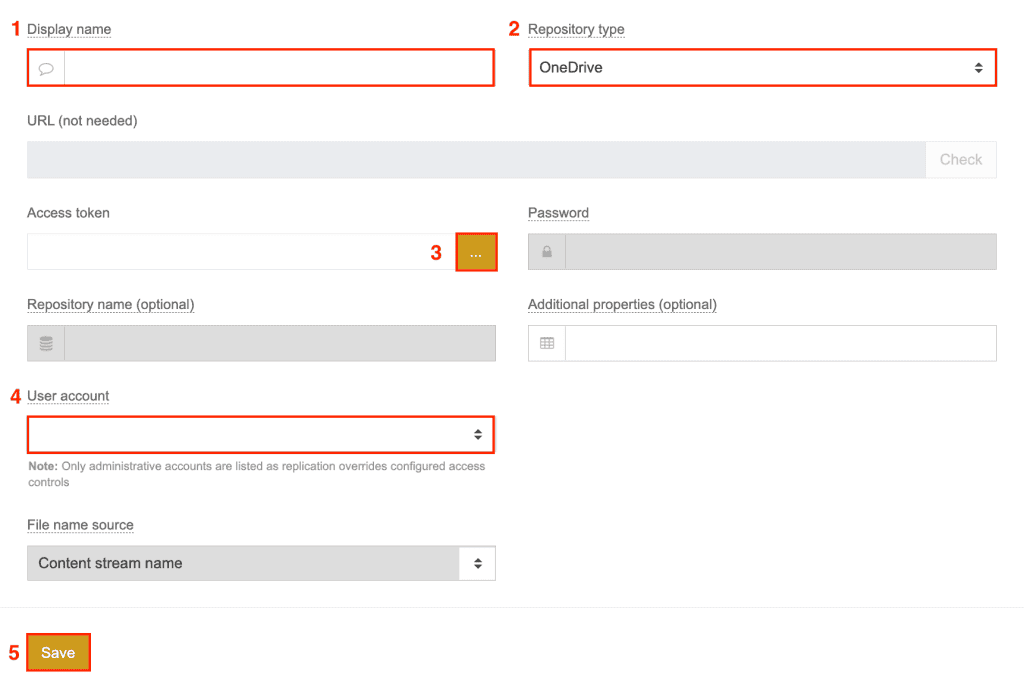
- Display name: Provide a meaningful name that describes the content system and account (e.g. OneDrive Marketing).
- Repository type: Select the content management system you want to connect to (e.g. Box, Dropbox, OneDrive, Google Drive).
- Now click the … button next to Access token. Your selected content management system will open in a new tab. Please log in if needed and grant access to TeamSlide. Once complete, you’ll notice a string of characters in the Access token input box.
- User account: Select the account that will own the slides. This user will be notified by email if there any errors or warnings associated with the replication link. Note that if you want to later delete this account, you’ll need to transfer ownership to another account.
- Click Save.
If you ran into any issues, please don’t hesitate to contact us at support@teamslide.com.
Congrats! You’ve created the link to your content management system. You’ll now need to continue to Libraries & Folders to select the specific content you want to make available in TeamSlide.