


Add and connect a library
Once you’ve established a CMS connection (e.g. SharePoint, Box), you’ll need to add and connect a library to copy and index your slides, images, and videos. The replication task will run frequently, ensuring you always have up to date search results.
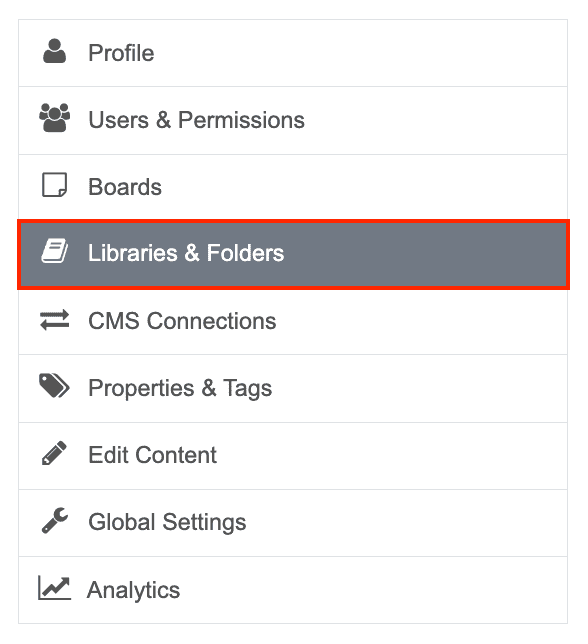
- Log into your TeamSlide Web Portal and select Libraries & Folders in the main menu.
2. Select Add library from the top menu. Fill in the name.
3. Click Connect library to CMS. Select the CMS connection that you created in the previous step.
4. Browse and select the folder that you want to index.
5. Select any additional options you may want to include: subfolders, PowerPoint files, Image files, and/or video files.
Note: There are advanced settings available (click expand).
6. Click save.
The connection to your library will begin shortly. If the process runs into any errors, the user account associated with the link will receive an email with the details. If you’d like to monitor the replication process, please access the log data from the CMS connection page.
If you have trouble establishing the replication task, please contact support@teamslide.com.